Any iPad, iPhone, Android or web browser.Your household.Organised.
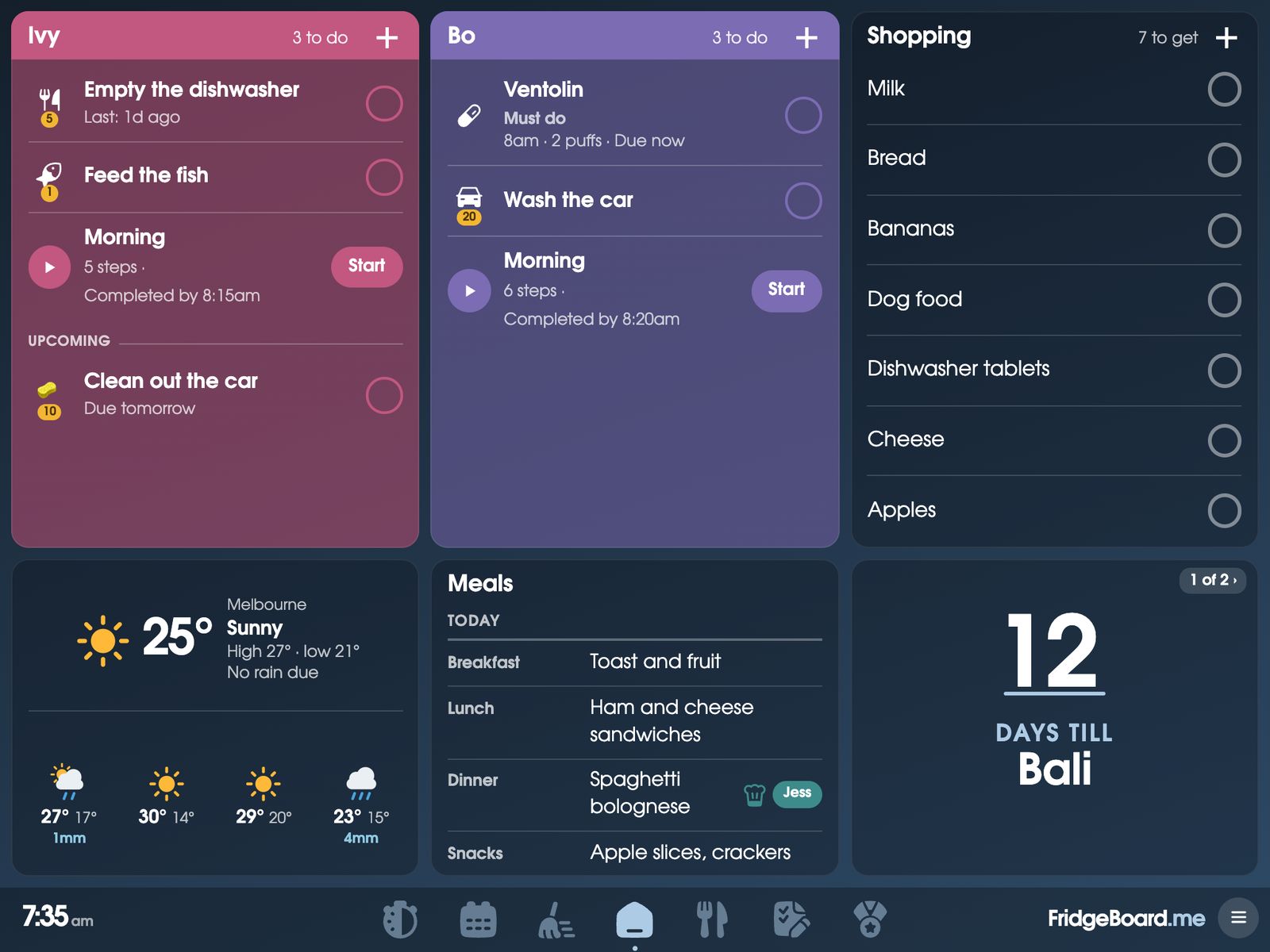
Everything a family calendar screen does, on the iPad you already have. The calendar, chores, shopping list and dinners, on the screen everyone walks past and on everyone’s phone.
Try it free for 5 daysUS$24one payment for your householdplus tax where it applies
- No card needed
- No subscription
- Works worldwide
Used by 400+ households every week.
Any iPad from the iPad 2 (2011) on, Android tablets and computers. Check yours
On your fridge, and in your pocket
Everything on the shared screen is on everyone’s phone too, and it changes on both the moment anyone taps. There’s no app to install: the phone side works in the browser, for everyone you invite.
Ivy ticks it off on the fridge. You see it at work.
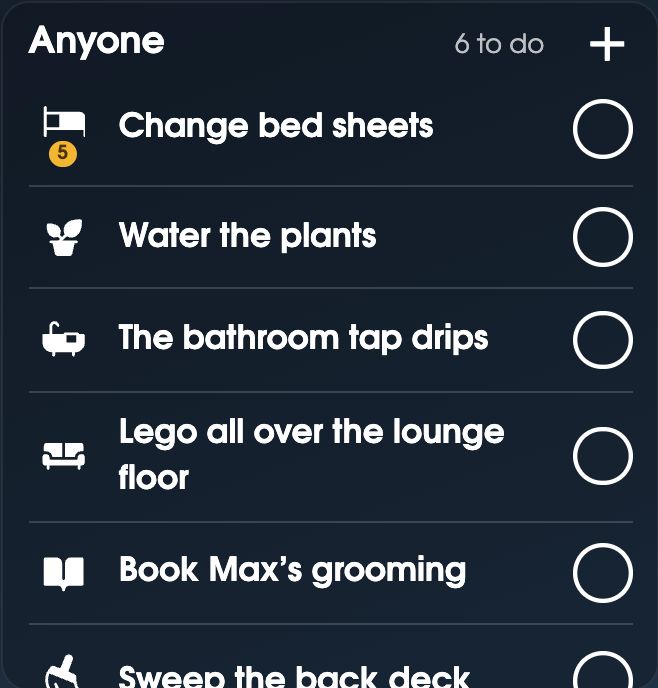
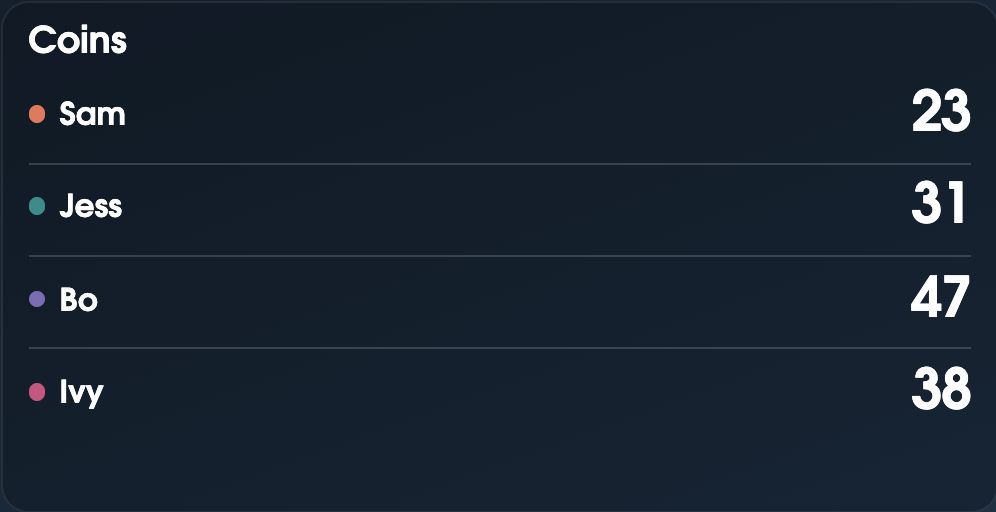
- Chores. Kids tick their jobs off on the shared screen, and you see it, coins and all, wherever you are.
- Shopping and calendar. Add the milk or Saturday’s party from the bus, and it’s on the fridge before you’re home.
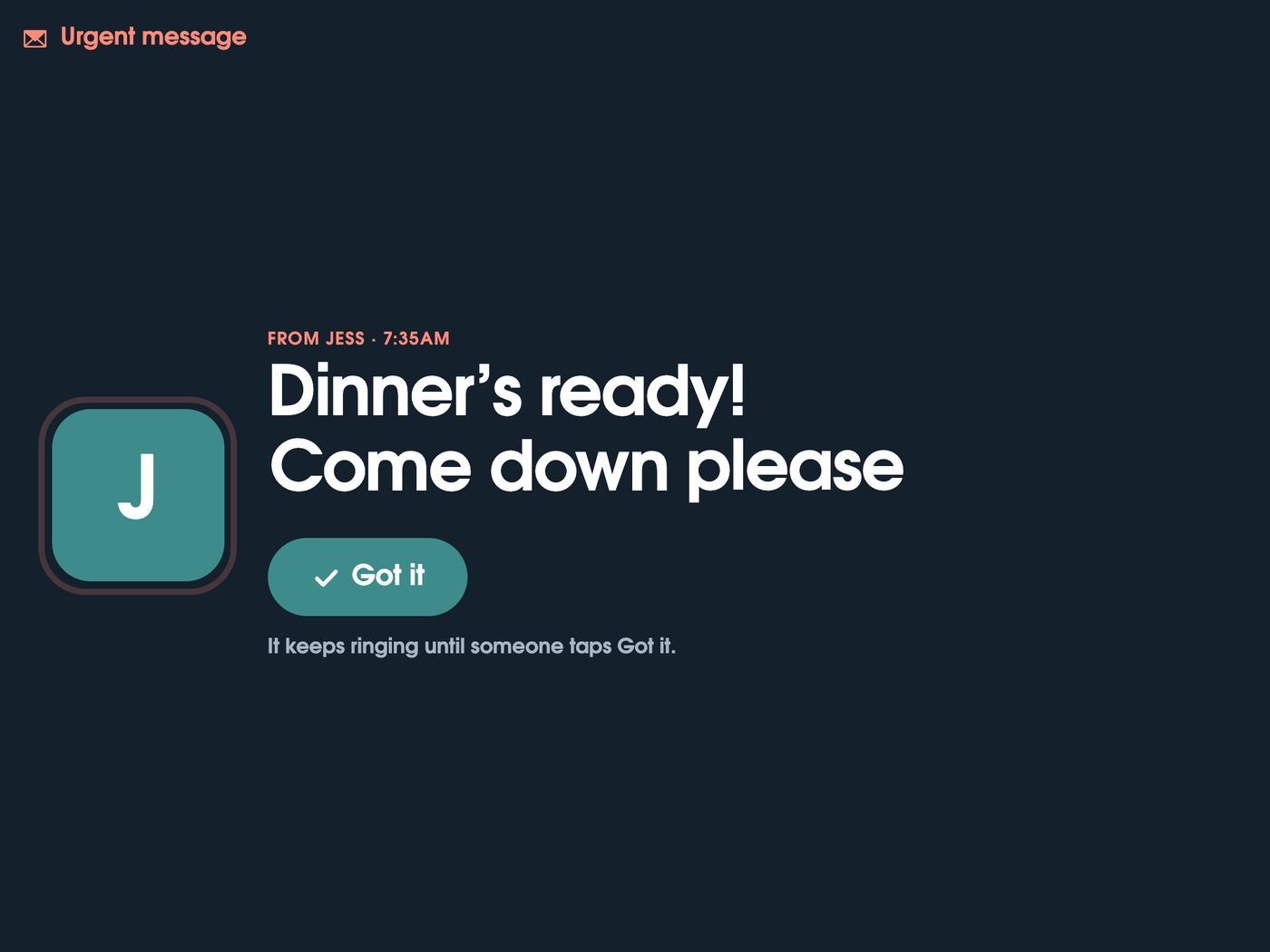
- Messages. Send “Dinner’s ready!” from your phone, and the shared screen rings until someone taps Got it.
Everything everyone keeps asking you
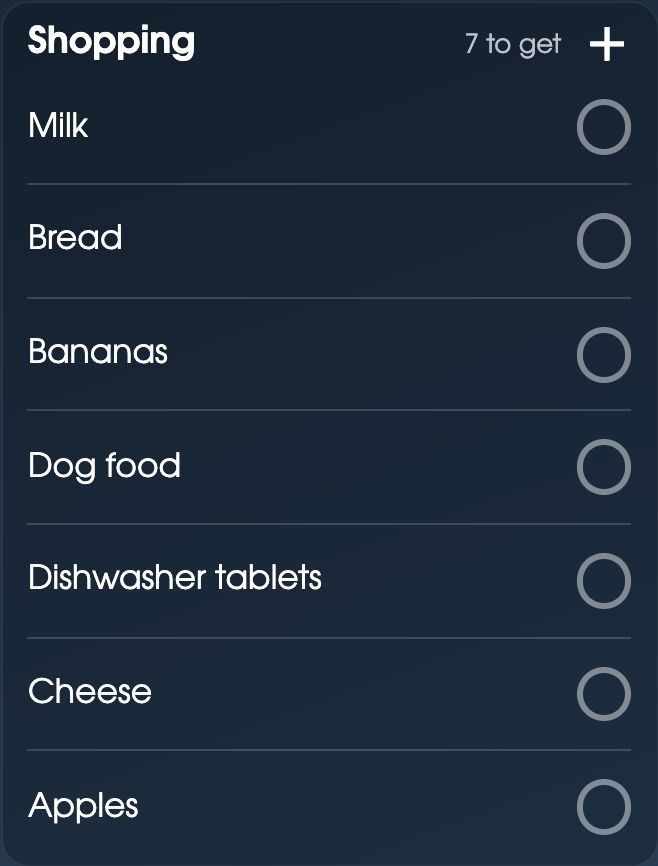
Do we need milk? Whose turn is it? What’s on Saturday? It’s on the shared screen. Tap one for more.
One list, sorted by aisle
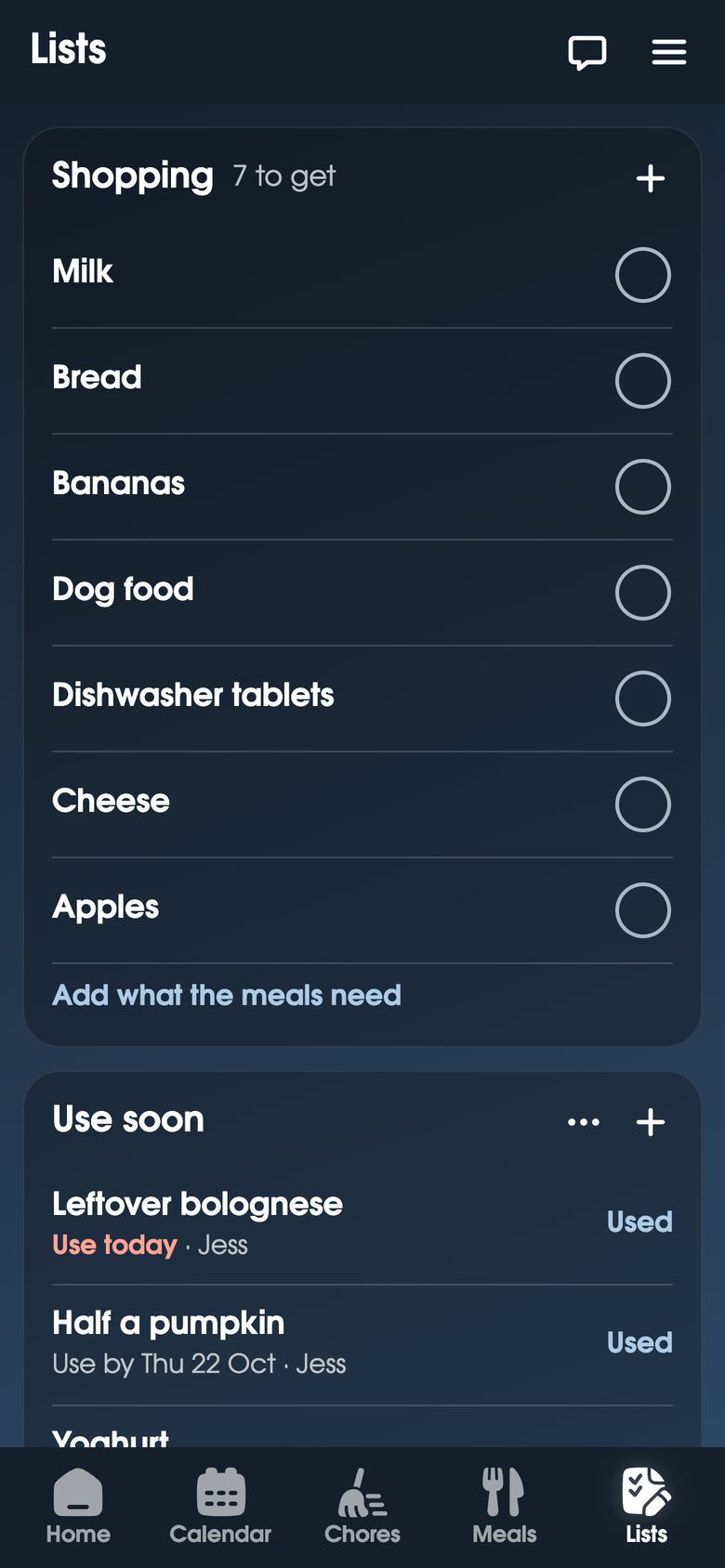
Add it on the fridge when the milk runs out. Tick it off on your phone in the shop.
- Aisles by itselfMilk goes under Dairy with nothing to set up. Drag the aisles into your shop’s order.
- The same shop every weekKeep ticked things on the list, then untick whatever’s run out.
- From your recipesShop for the week’s meals, with like things added up: 2 eggs and 3 eggs is 5 eggs.
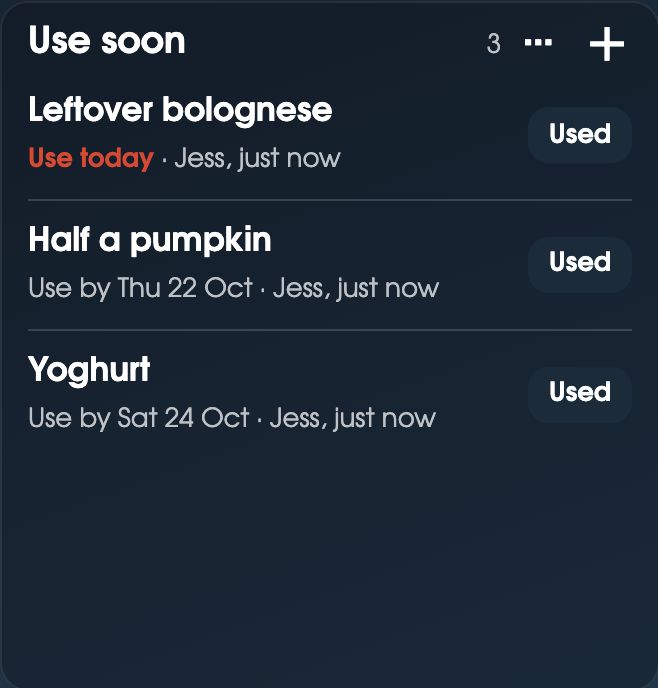
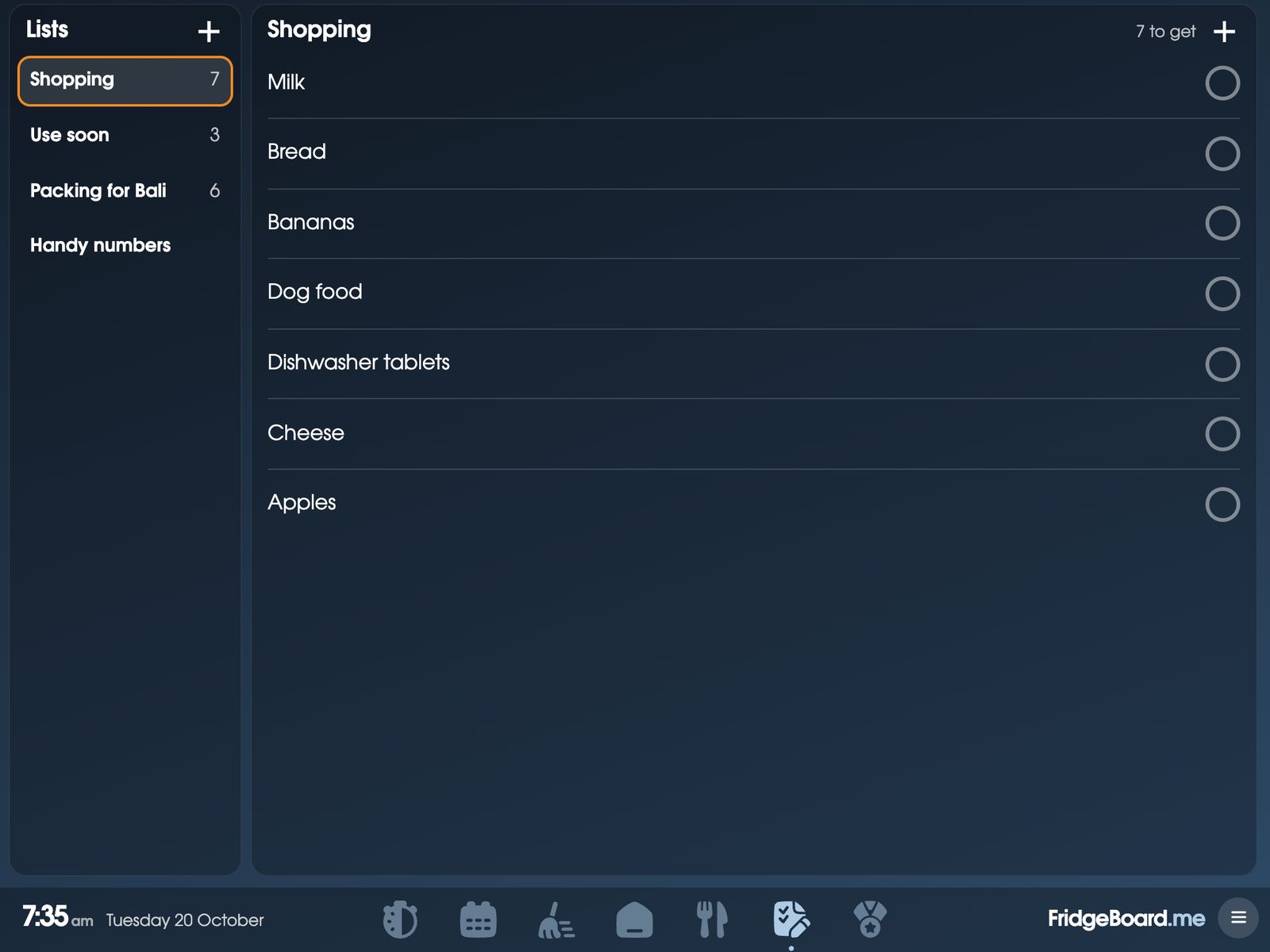
- Lists of your ownUse soon for leftovers, packing for holidays, birthday ideas, and your Apple Reminders lists.
- Add by voice“Hey Siri, add milk to FridgeBoard” from your iPhone.
Chores earn coins. Coins buy treats.
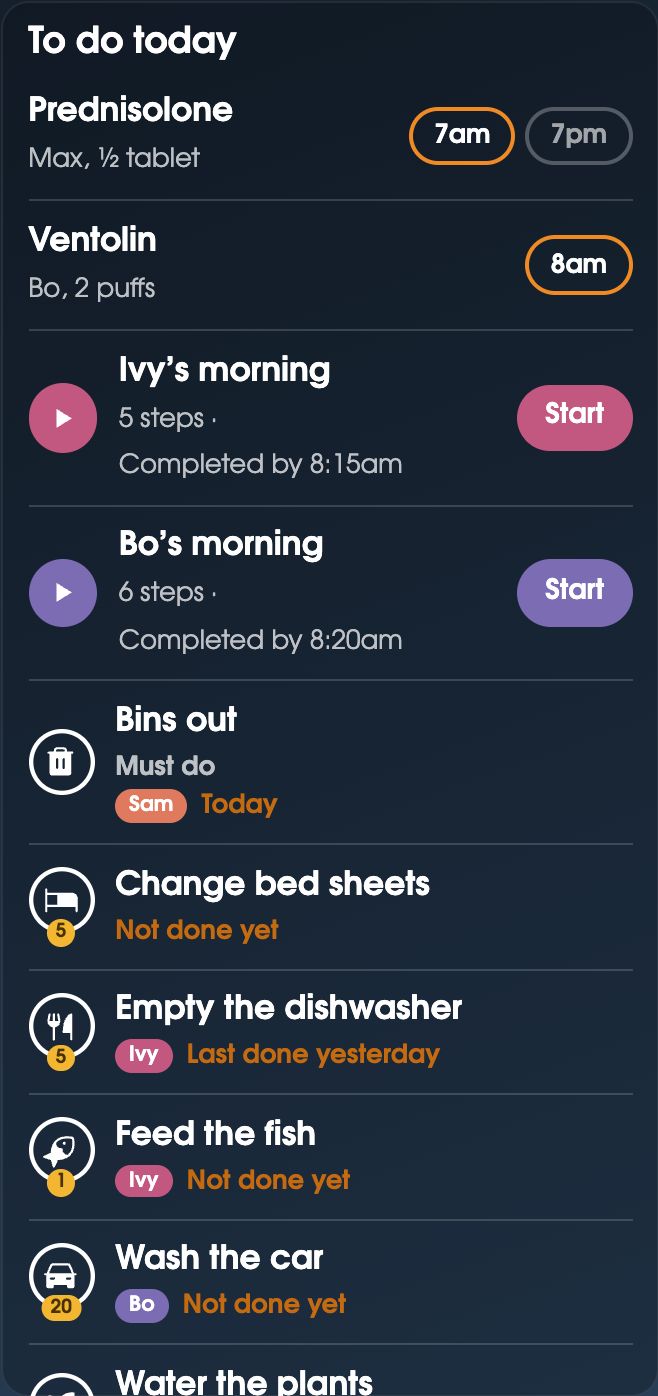
Kids tick their jobs off on the shared screen and save up for treats you choose, or real pocket money.
“My seven year old woke up and started running back and forth across the house to get stuff checked off in time!”LB
- Take turnsWhose turn is it? FridgeBoard knows, and swaps each time, each day or each week.
- Any time jobsThe bins, the dog poo, the car. Whoever does it taps their circle, and nobody gets blamed.
- Bin night, and the jobs nobody remembersBins out every Tuesday. Descale the coffee machine 30 days after it was last done.
- What should I do now?One job at a time, room by room, from about 200 everyday jobs.
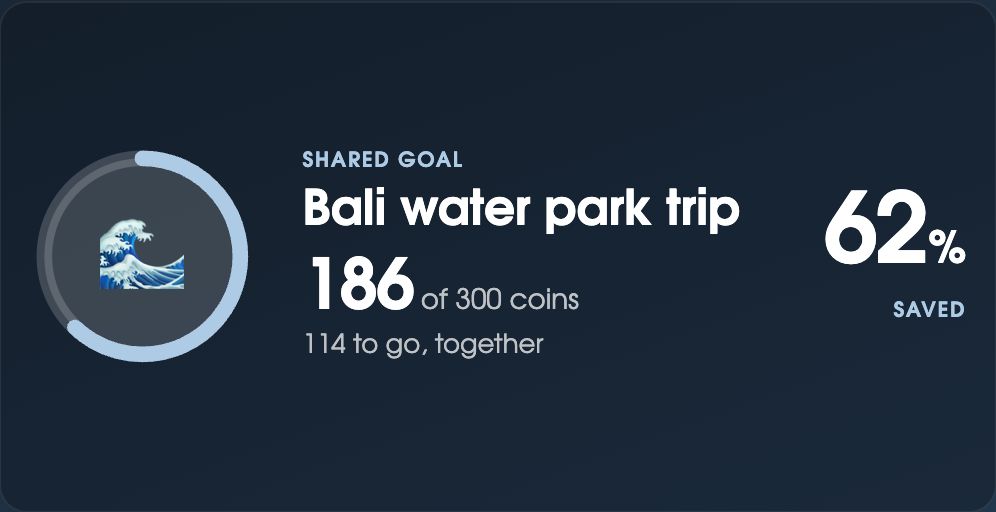
- A shop you fillAn ice cream trip, staying up late, or real money at 50c a coin. Plus a shared goal everyone saves towards.
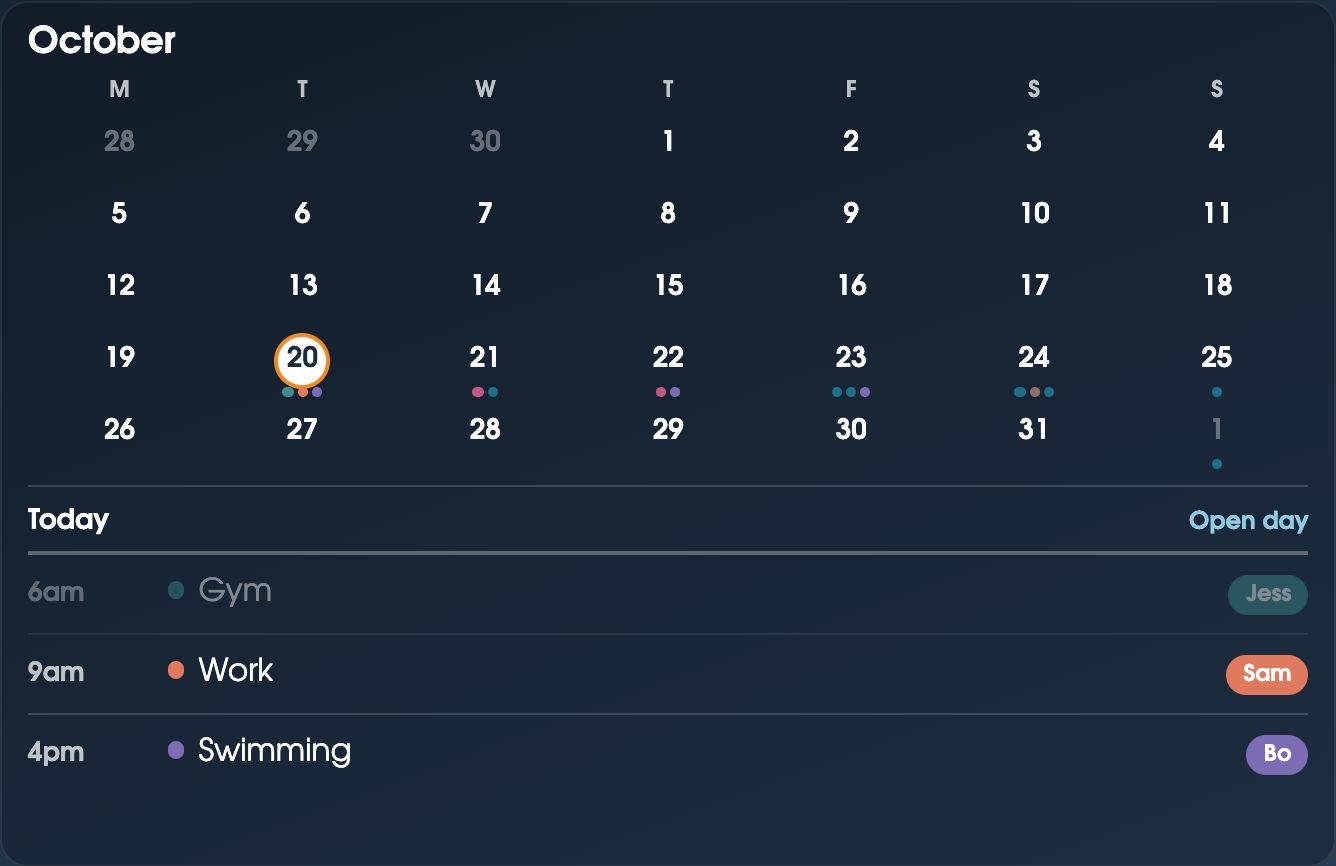
Everyone’s week, in their colour
Google and Outlook calendars, changed right on the shared screen. iCloud and school calendars too.
- Syncs both waysAdd or move an event on the shared screen or your phone, and it changes in Google or Outlook.
- Up to 20 calendarsFamily, work, school and club links, all included.
- Days, Week and MonthSeven days at once, or the month at a glance, a year ahead.
- Who and wherePut @Ella in an event and it’s hers, in her colour. Places show under the time.
And plenty more
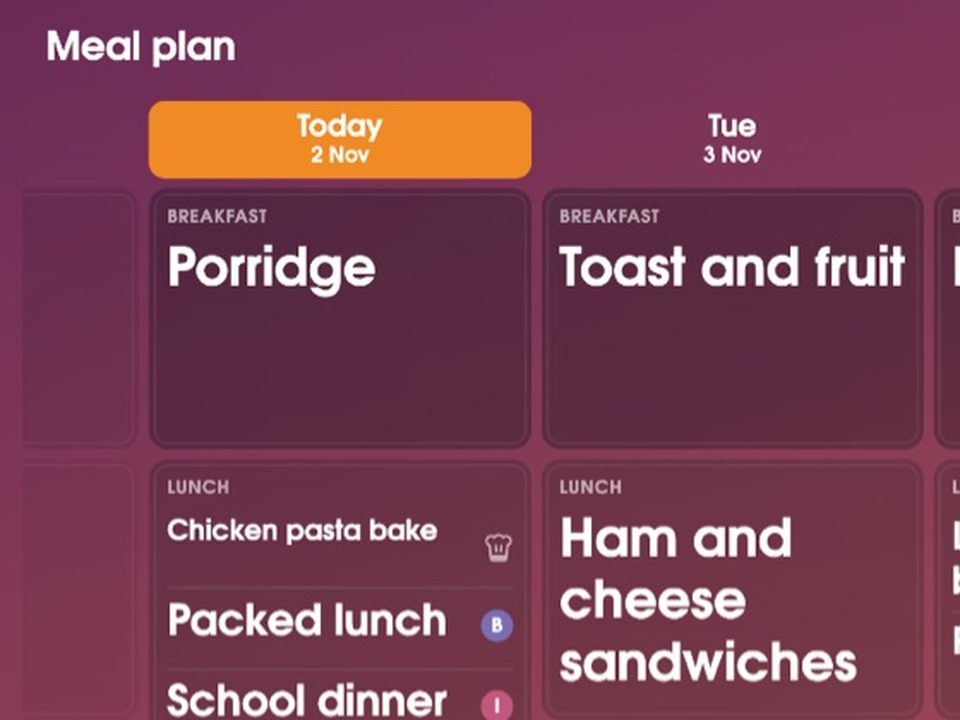
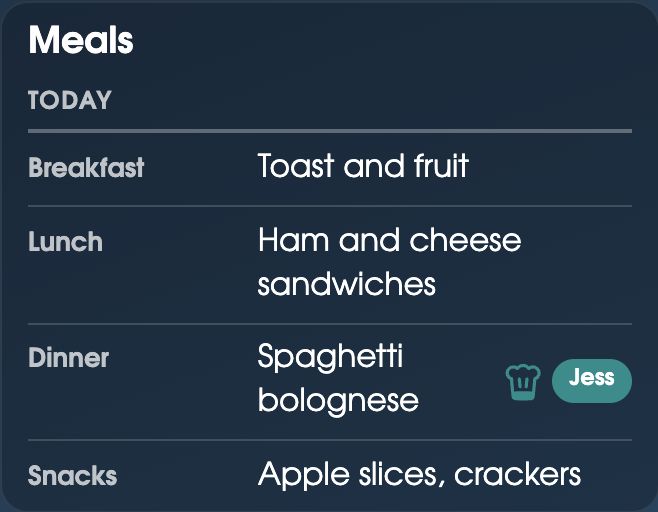
What’s for dinner, sorted
Plan the week, keep your recipes, and send what you need to the shopping list.
- A meal eachA packed lunch for one, school dinner for another, side by side.
- Recipe from a linkPaste a recipe website and the ingredients fill themselves in.
- Move a mealPlans changed? Move it to another day.
- Who’s cookingEach meal can say who’s making it, in their colour.
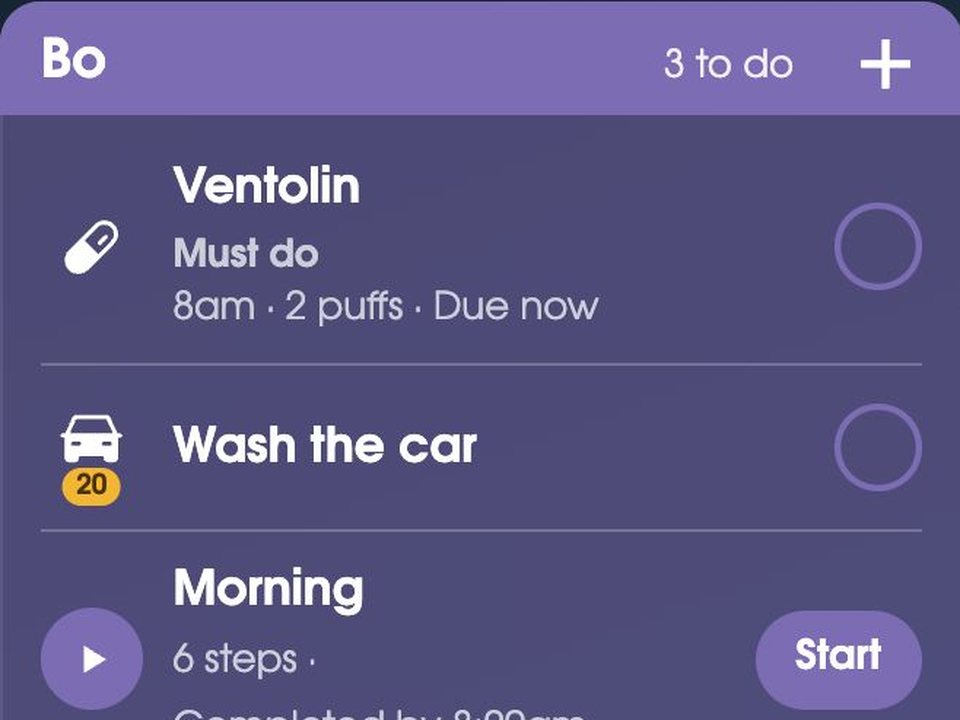
Medicine, for people and pets
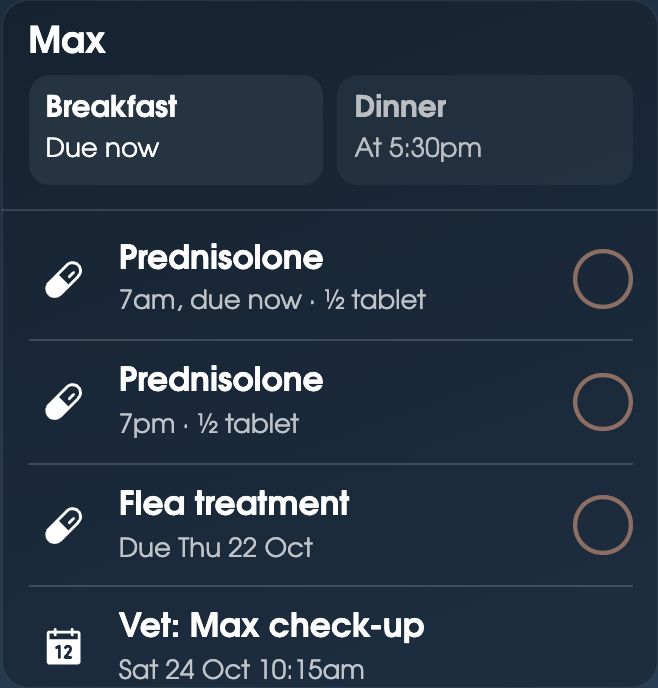
A reminder when it’s due and a tick when it’s given, so nobody doubles up or forgets the dog’s tablet.
“I love that for medications you can put your current total… and then you can set a reminder for when to reorder!”Jessica
- Due, given or missedEach dose shows when it’s due, and turns red if it’s late.
- Counts what’s leftTell it how many you have, and it reminds you to reorder before you run out.
- When neededMedicine taken only when needed shows when the last dose was, so nobody gives another too soon.
- Pets tooTablets, flea treatment and the vet, with who gave it.
Habits that fill in their own chart
Reading, water, the gym, teeth. Tick it or count it, right on each person’s card.
- Tick it or count itRead today, or 6 glasses of water, with coins each day the goal is met if you like.
- The whole week, bigTap a habit and the screen turns the person’s colour, with a bar for every day.
- Like a paper chartThe Habits card fills itself in: this week for everyone, or this month for one person.
- Pets tooBrushing, training and play time, with who did it.
- Private when you wantEach habit shows on every screen, just some, or only on phones. Note things like headaches too, with a file to take to the doctor.
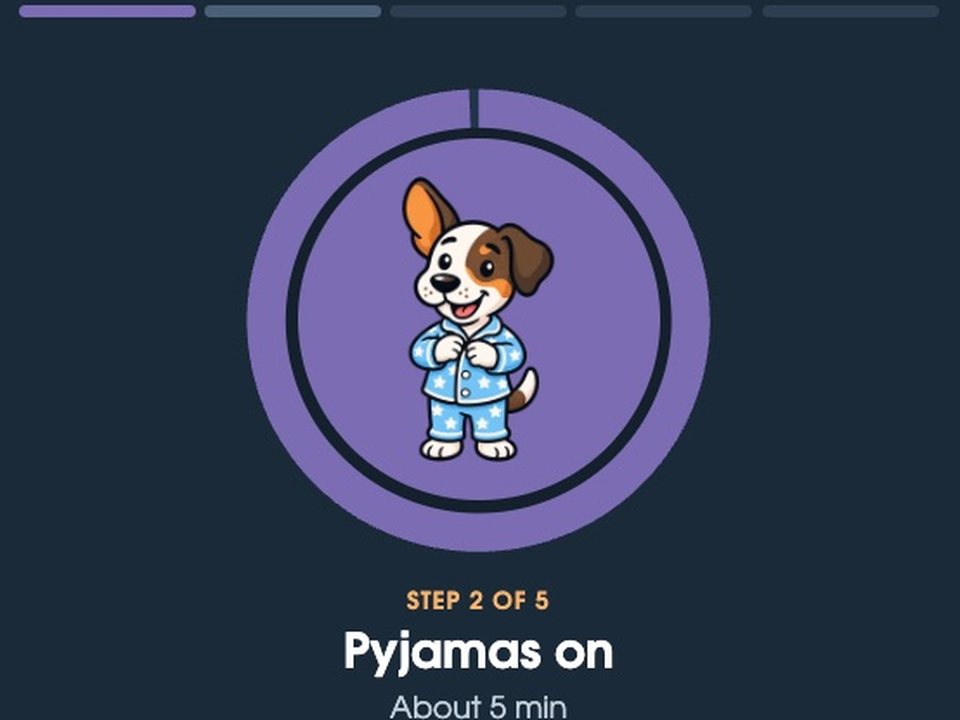
Mornings and bedtime, without the nagging
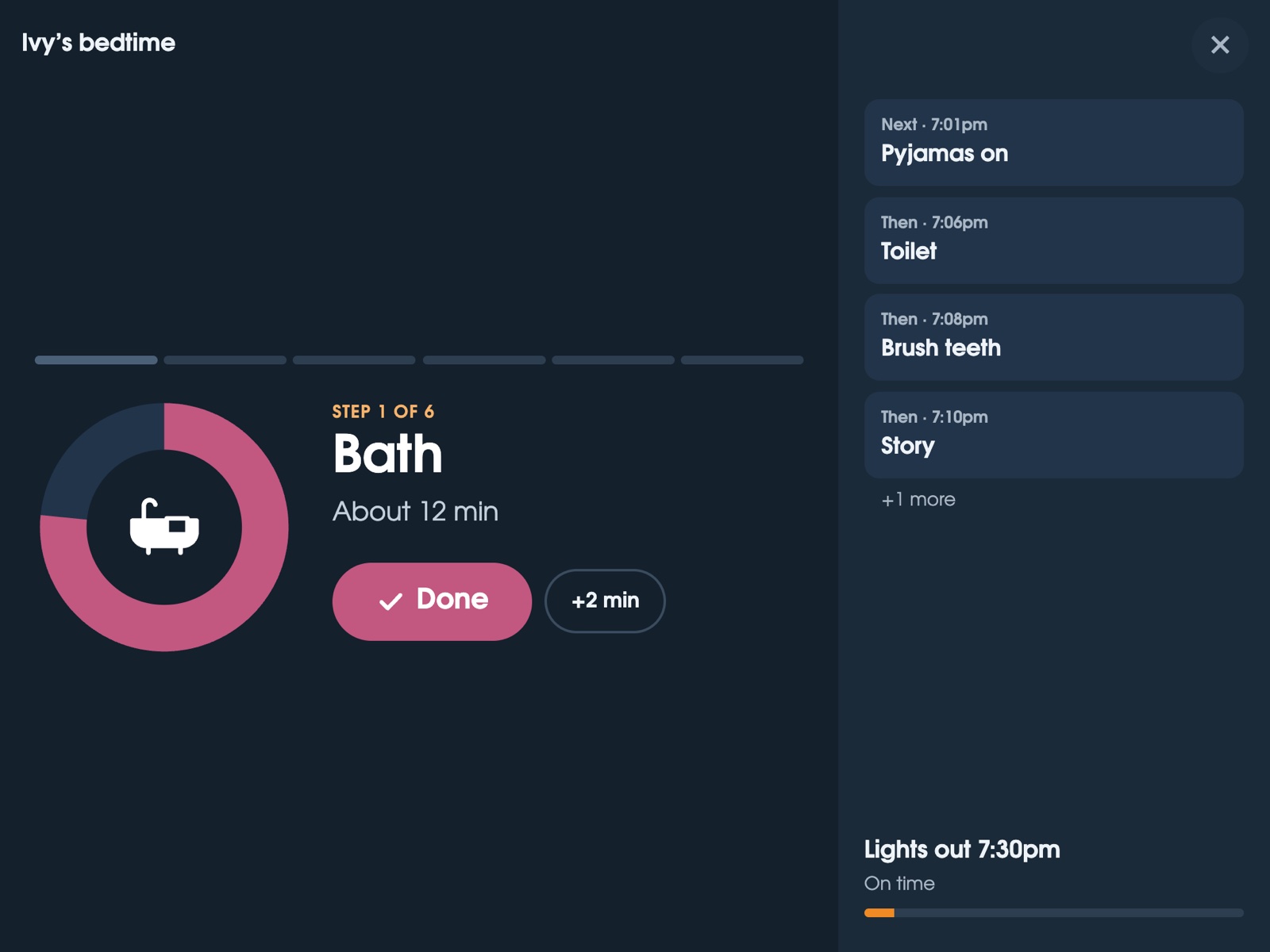
The shared screen walks each child through it, one step at a time, with Max showing each step.
“Fridge board has completely changed our mornings so much!”Marcus
- Pictures for little onesMax does nearly every step, for kids who can’t read yet, and the steps can be read aloud.
- One after anotherKids start a few minutes apart, so nobody waits for the bathroom.
- A finish goal kids can readFinish goal: 8:00am. Running behind by 3 min.
- Make your ownBefore school, after school, bedtime, getting ready for sport.
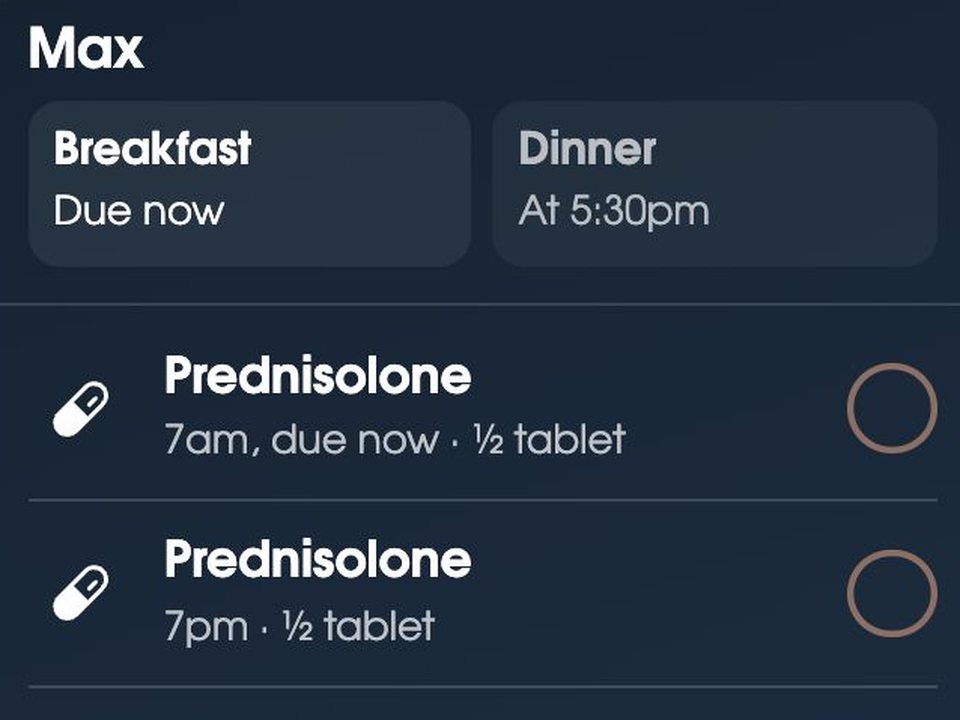
The dog’s breakfast, walks and tablets
Feeds, walks and medicine, with who did it, so the dog doesn’t get fed twice.
“Especially love that you can add pets and their meals/medicine.”Rhiannon
- Fed, and by whoBreakfast and dinner with a tick, and who gave it.
- WalksStart and end a walk, and see how long it was.
- Let out, and the restCount the things you want to keep track of, like let out or brushed.
- Care remindersNail trims, flea treatment and the vet, when they’re due.
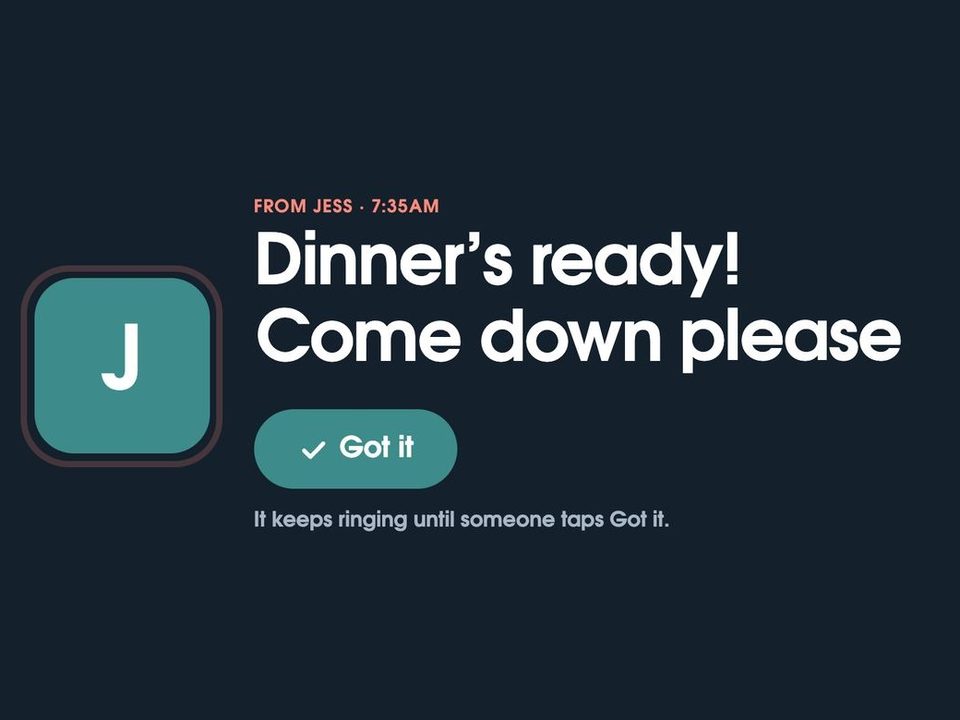
“Dinner’s ready!”
Send it from your phone. It rings on the shared screen until someone taps Got it.
“Love I can send a msg from my phone bc my kids won’t be getting a cell phone.”Beth
- Rings until answeredMake it urgent and it chimes again and again.
- See it was seenYour phone shows when someone tapped Got it.
- One screen or allJust upstairs, or every screen in the house.
- Little notesThank-yous and well dones that take turns on a card.
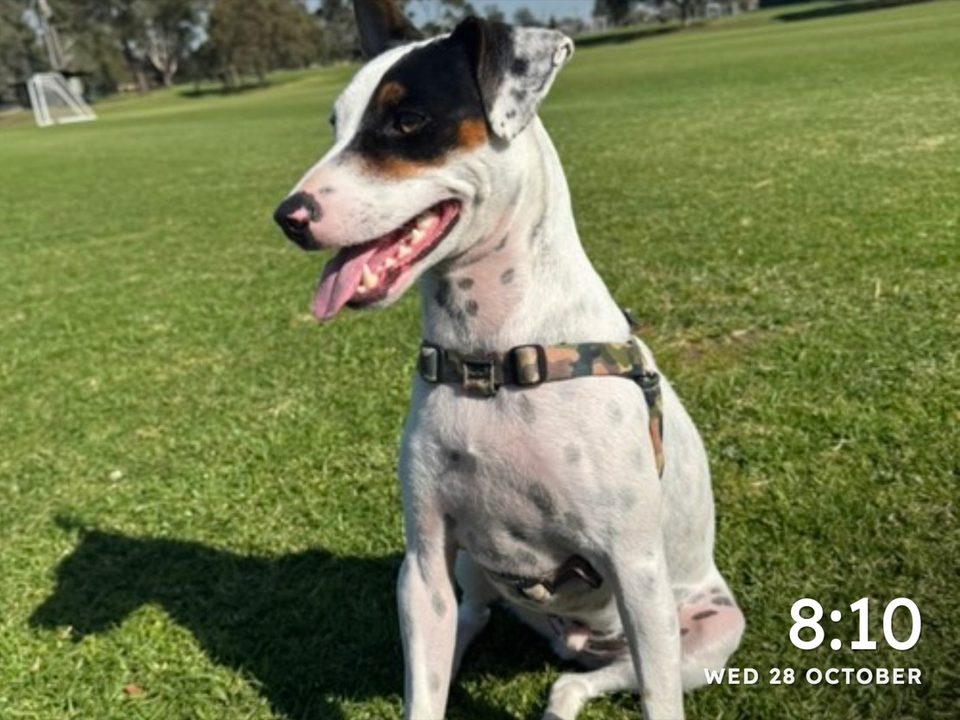
Your photos, when nobody’s using it
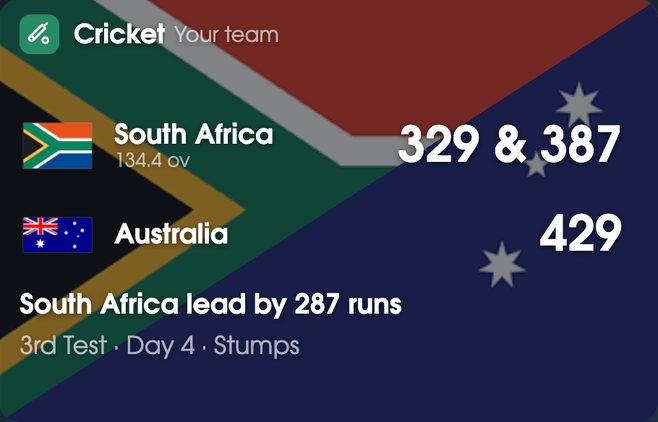
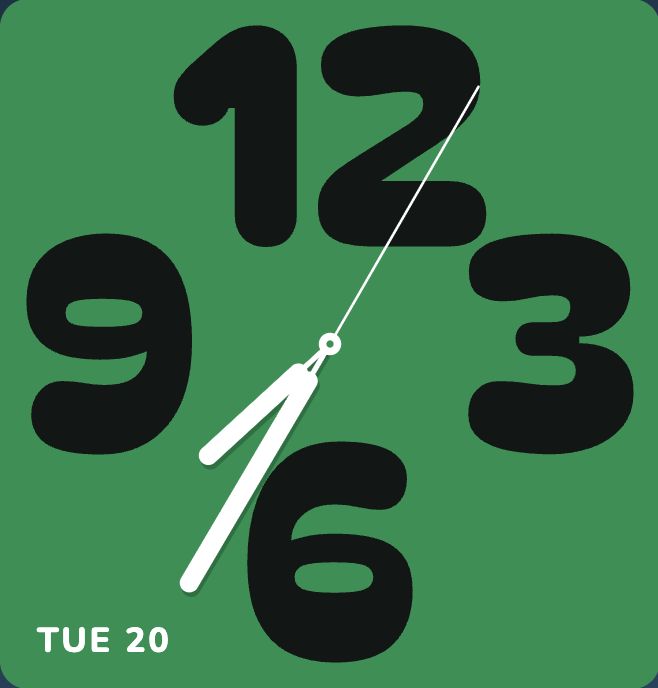
After a few quiet minutes, your photos, a clock you can read across the room, or your team’s live score.
- Your photosUp to 10, taking turns, with the time in the corner.
- Clock facesBig numbers, a frame with the weather, the sun’s path, a new pet every hour, and more.
- Live scores22 leagues, from the NFL and NBA to the AFL, NRL, Premier League, cricket, golf, tennis and F1.
- Dark at nightIt sleeps at the times you pick, and a tap wakes it.
And the rest
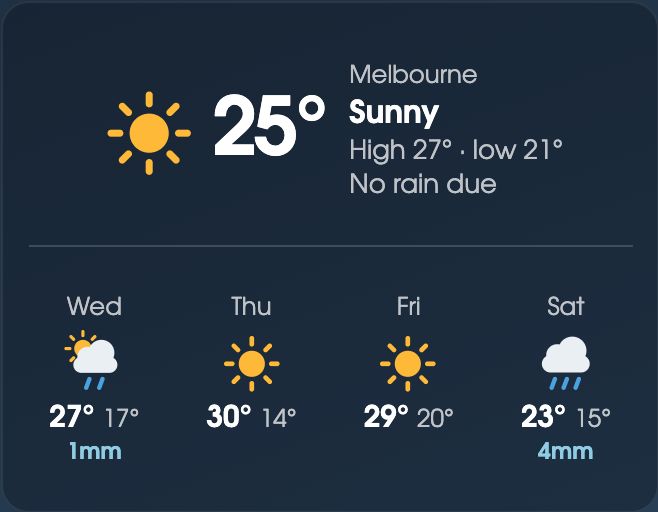
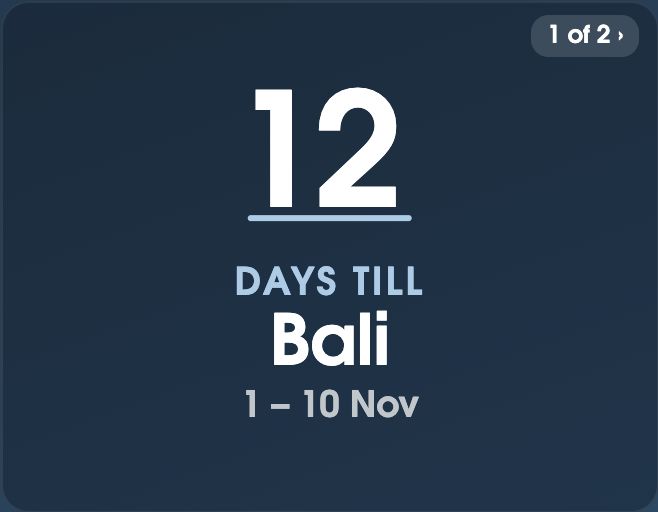
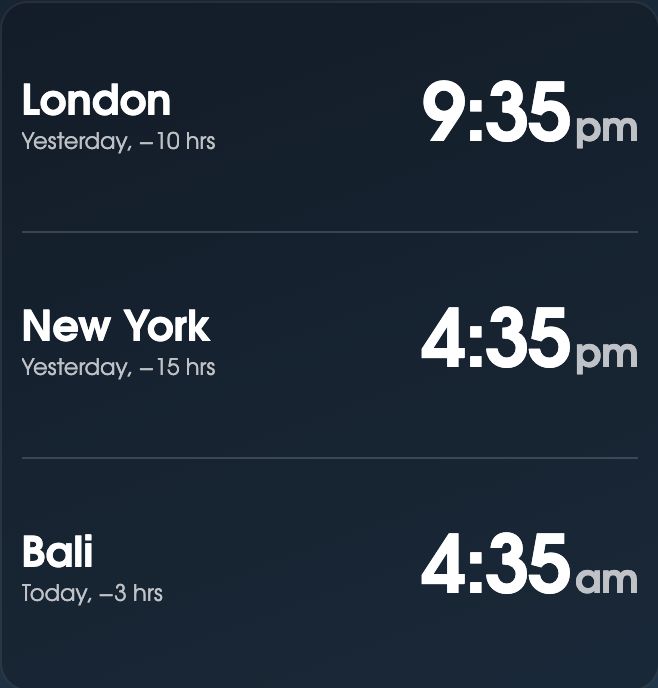
Habits that fill in their own chart, bills with who paid, kitchen timers, countdowns, the weather, a world clock, handy numbers, little notes, who’s out tonight and who’s staying, a sitter or cleaner’s own view, and adding things by voice with Siri.
See the cards ›Swipe for more ›
A decision wheel, with a secret
Who unloads the dishwasher? What’s for dinner? The kids spin it on the shared screen, and nobody argues with the wheel. Try it.
Psst. On your phone:
Pick where it lands next, and nothing on the shared screen gives it away. Leave it on Random and it really is random.
Random when you want it. Rigged when you need it.
Pick the cards for your screen
Put the ones your household needs on Home, as big or small as you like, right on the shared screen. Each screen in the house can have its own.
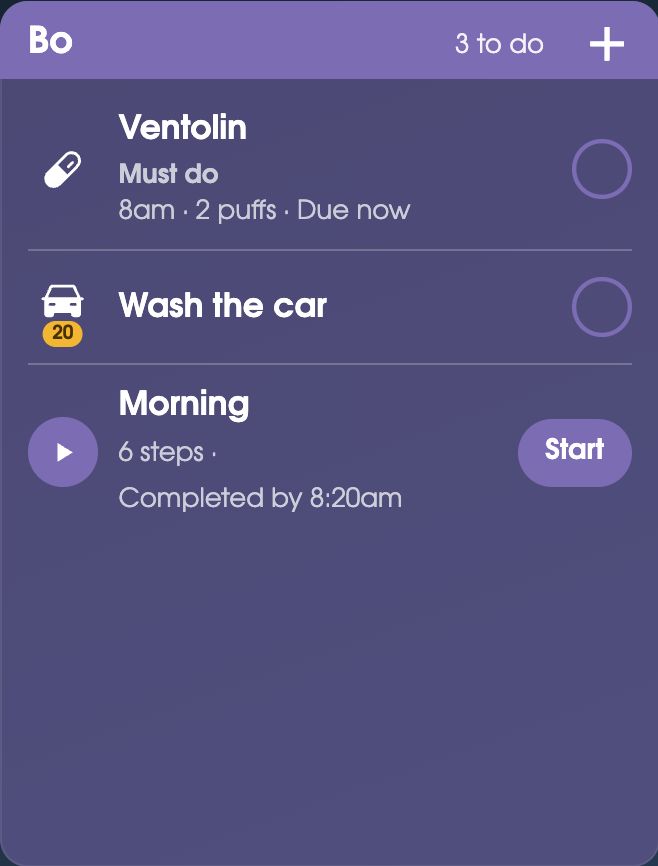
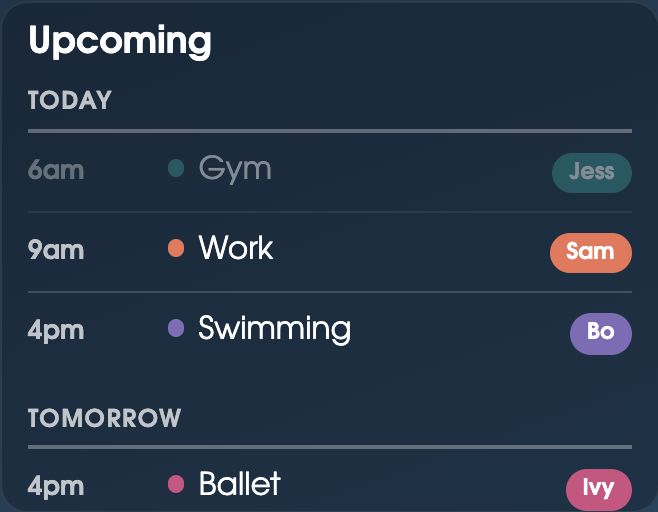
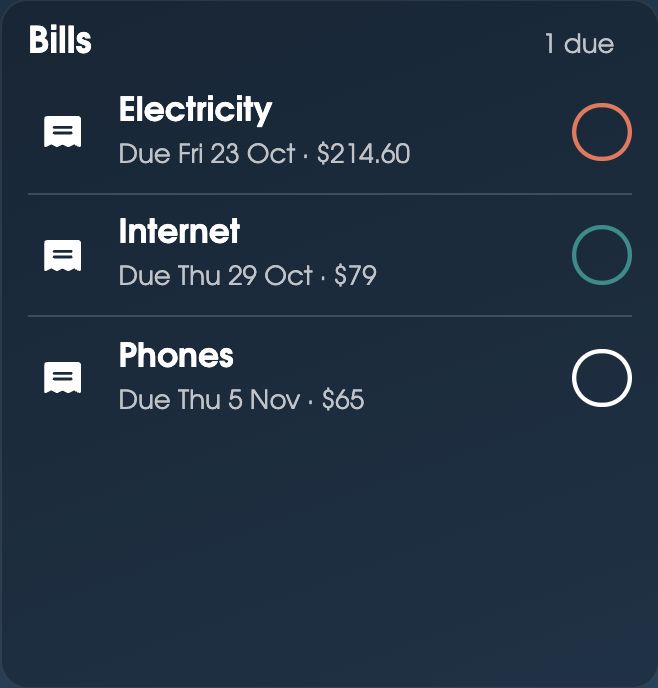
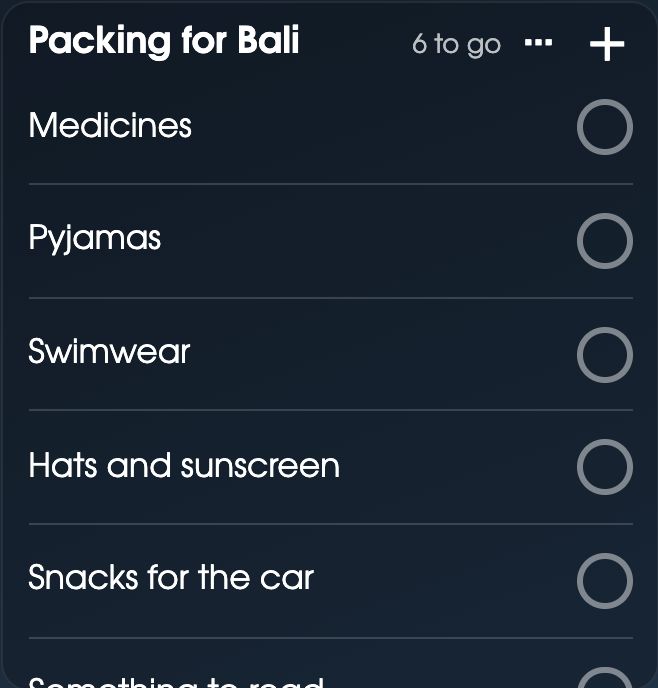
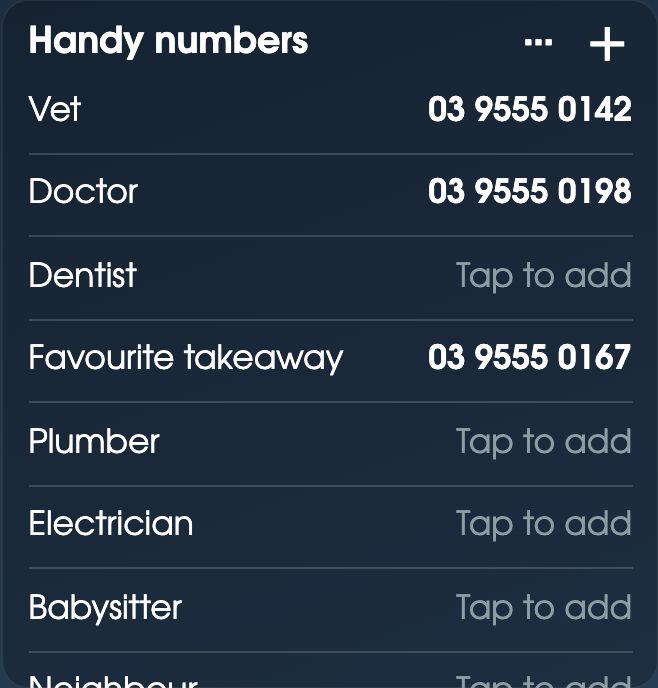
Swipe for more ›
Which sounds like your house?
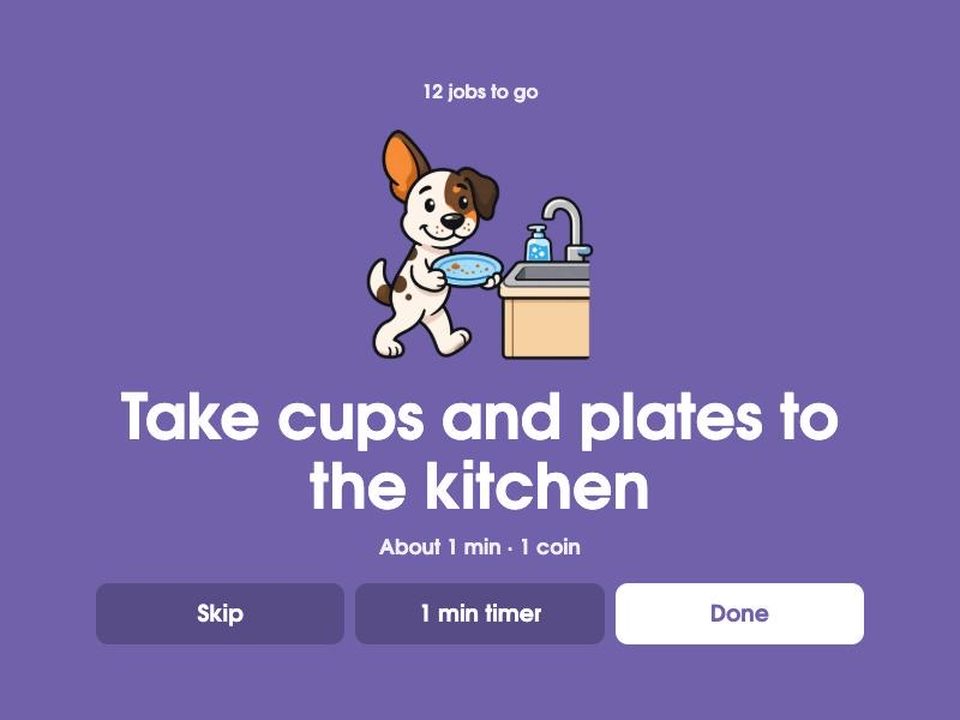
Kids who can’t read yet
Max shows each step in a picture, so little ones know what’s next without asking. Turn on reading aloud and the shared screen says each step too.
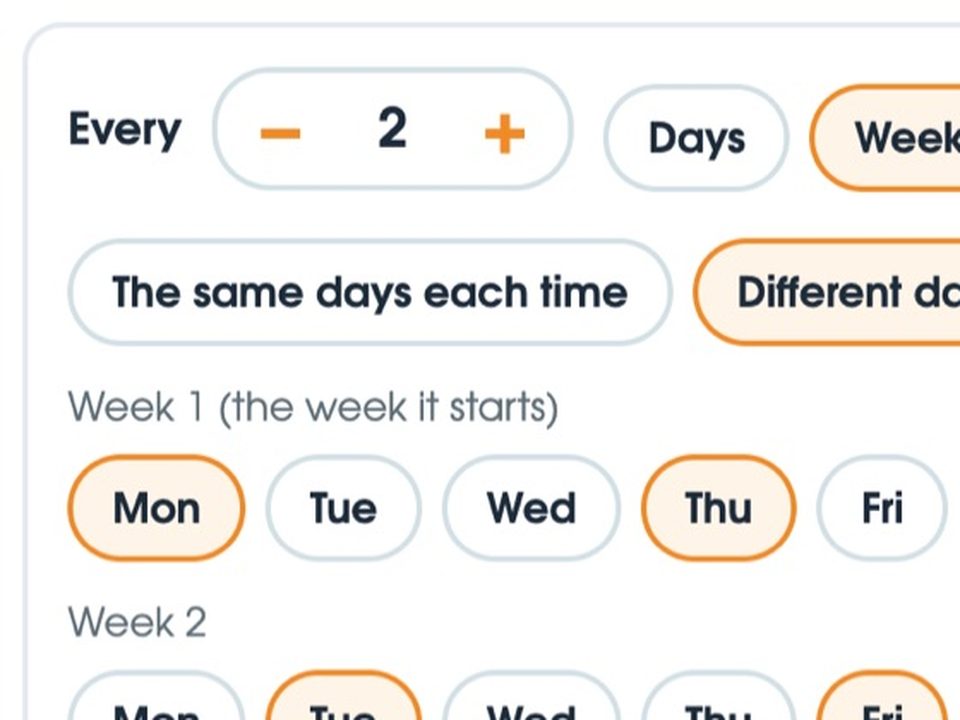
Kids between two homes
Different days each week, every other weekend, or a 2-2-5-5 roster. Put the pattern in once, and chores, routines and who’s here follow it.
“I don’t have my son every evening and this customization made it so easy!”Carrie
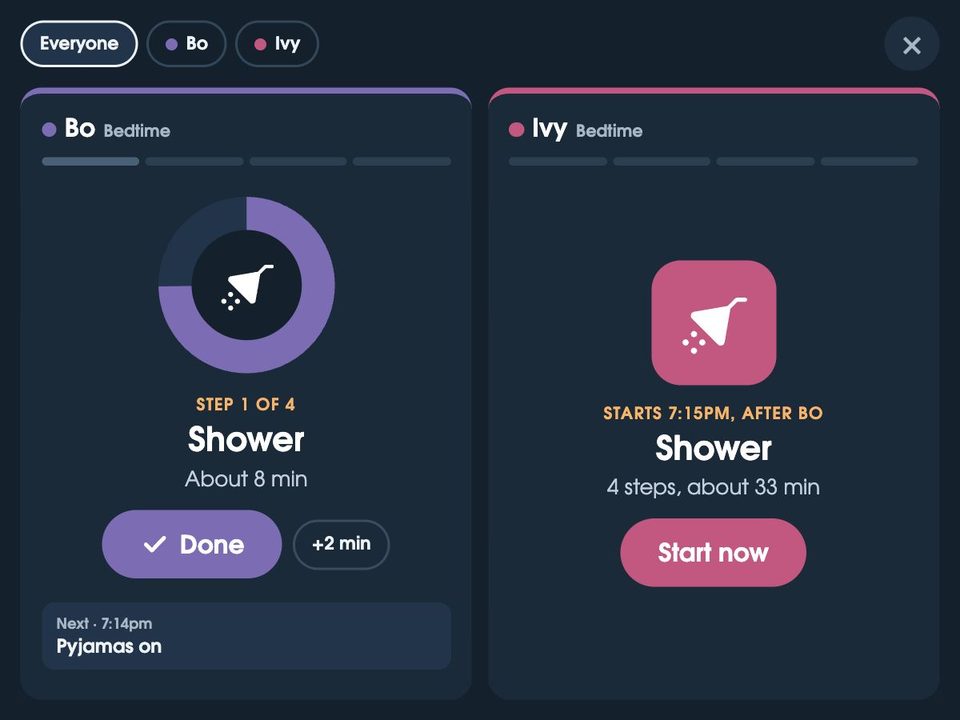
One bathroom, three kids
Children on the same routine start a few minutes apart, so one’s in the bath while the next puts their pyjamas on.
Kids and teens with their own phone
Type their email on their card, and they tick off their own chores, jobs and routines from their phone. They can’t change settings or give themselves coins.
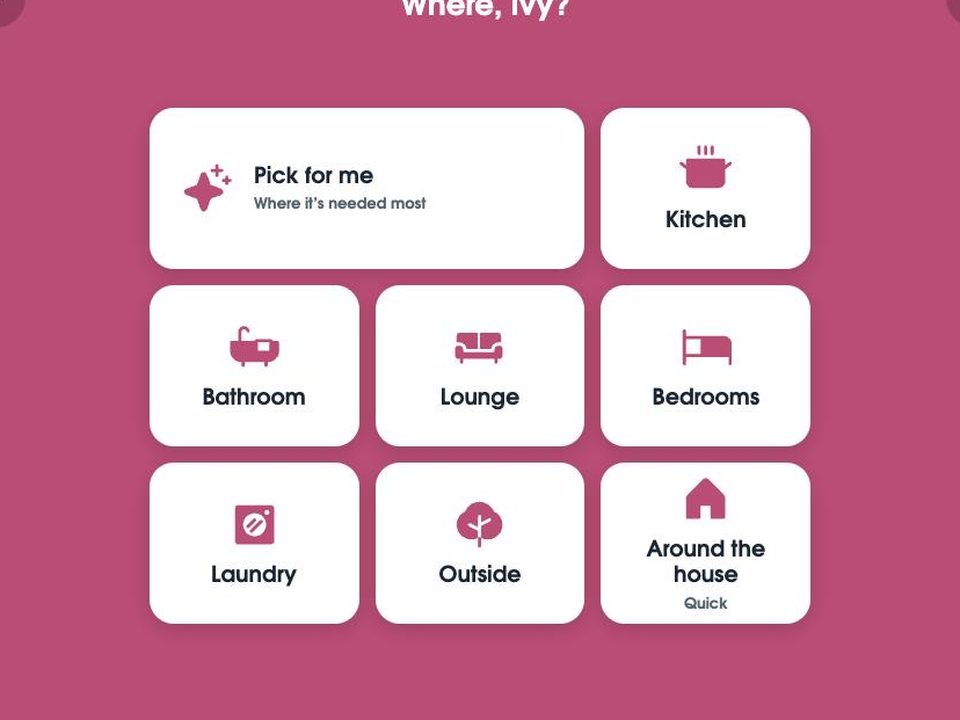
“What should I do?”
Pick a room and how long you’ve got. It gives one job at a time, in the order that gets the room done.
One for the kitchen, and one upstairs
Got more than one old iPad? Put one on the fridge and one at the top of the stairs. They share the same lists, calendar and chores, and each can show its own Home. Three shared screens are included, and phones don’t count.
From families using it
“I have an almost 5 year old who hates trying new foods. She ate 2 spoonfuls tonight just to earn some coins. I didn’t have to fight her and have both of us end up in tears!”
“This has my 10 year old iPad running like it’s the champion of our household!”
“I have wanted Skylight for a long time but could never justify the money.”
“My daughter has tried to get me to buy a Skylight calendar for years… I have an old tablet that I can use and I am connecting my whole family!”
“We’ve been using Mango Display for the past couple of years, and already your app is far more interactive.”
“No subscription and you automatically let as many people in as need to use it.”
“Fridge board has completely changed our mornings so much!”

Made by Matt, and Max
FridgeBoard isn’t made by a big company.
I’m Matt. I build FridgeBoard, with Max the dog keeping an eye on things, and he’s the Max in the routine pictures. Most of what’s in it came from families asking for it in our Facebook group, and new things arrive most weeks. Every one of them is included in your one payment.
Why buy a new screen and a subscription?
Skylight, Cozyla and Hearth sell you a new screen, and most of them a yearly plan on top. FridgeBoard does the same job on the screen you already have, for one payment.
| FridgeBoard | Skylight | Hearth | Cozyla | |
|---|---|---|---|---|
| Uses a screen you already have | ✓ | ✕ | ✕ | ✕ |
| No yearly plan | ✓ | ✕ | ✕ | ✓ |
| Chore rewards and meal plans with no plan | ✓ | ✕ | ✕ | ✓ |
| On every phone at home | ✓ | ✓ | ✓ | ✓ |
| Total after 5 years | US$24 | $695 | $1,131 | $350+ |
Skylight: about $300 for a 15″ screen, plus $79 a year for Plus. Hearth: $699 for the 27″ screen, plus $86.40 a year, needed to set it up. Cozyla: $349.99 for the 15.6″ screen, with an optional $69.99 a year plan.
US dollars, list prices on each company’s US website in October 2026, before sales and tax. Prices change, so check them before you buy.
FridgeBoard compared with Skylight, Cozyla, Hearth and DAKboard
No subscription. No ads.
$24 USD
One payment for your whole household.
Plus local tax where it applies, shown before you pay.
- 5 days free, no card needed, from when you connect the shared screen
- Everyone in your home, every feature
- 3 shared screens around the house, plus every phone at home
- Up to 20 calendars: Google, Outlook, iCloud, and school or club links
- Updates included, for as long as we run FridgeBoard
- 14-day money-back guarantee, for any reason
Need more than 3 screens? Each extra one is US$10 once, plus tax.
Getting started
Five minutes, on the screen you already have. Nothing to install: no App Store, no Apple ID and no updates.
- 1
Start on your phone
Tap Try it free, enter your email and add who lives with you.
- 2
Open it on the iPad
In Safari, go to fridgeboard.me, tap Open, then Use this as the shared screen.
- 3
Scan the code
Point your phone’s camera at the code on the iPad, and your household appears.
- 4
Put it where everyone walks past
On the kitchen bench, or on the fridge. See how.
Will mine work?
If it has a web browser, it probably will. Pick yours.
Yes, any iPad from the iPad 2 on
Every iPad since 2011, including every iPad Air, iPad mini and iPad Pro, even ones that stopped updating years ago. Only the very first iPad, from 2010, is too old.
Yes
In Chrome, or whichever browser it has.
Yes
A spare laptop on the bench works, with a touch screen or a mouse.
Try it first
Keep the screen, drop the subscription. If your Skylight, Cozyla or similar can open a web page full screen, FridgeBoard can run on it. A Cozyla can, with Chrome from Google Play. The trial needs no card, so check yours first.
Try it first
In its Silk browser. Small ones get a simple at-a-glance Home. The trial needs no card, so check yours first.
Try it first
Fridges like Samsung Family Hub have their own browser. The trial needs no card, so check yours first.
Try it first
Most Samsung and LG TVs have a browser. Tick things off on your phone. The trial needs no card, so check yours first.
Try it first
Fire tablets and Fire TV, in the Silk browser. The trial needs no card, so check yours first.
No
Google Nest Hub doesn’t open web pages any more. Chromecast and streaming sticks can’t either, unless you can install a browser.
It’s almost always just flat. Find a charger that says 10W or more on it: 10W, 12W, 20W, or 2.1A and up. A small phone charger or a laptop’s USB port is too weak to wake a flat iPad.
Leave it on charge overnight. A flat iPad can show nothing at all, or just an empty battery, for up to an hour. That’s normal.
If the screen is lifting or the back is bulging, the battery has swollen. Don’t charge it: take it to a battery recycler.
Almost certainly not too old. Newer Wi-Fi, like Wi-Fi 6 and 7 and mesh systems, still works with older iPads. Sometimes a newer router just has the older way of joining switched off, and turning it back on takes a minute in your router’s app. The help page walks you through it, and if you’re still stuck, email us your router’s name and we’ll help you find the setting.
On the bench, or on the fridge
It doesn’t have to go on the fridge. Stand it on the kitchen bench in its case and it works just the same: nothing to stick, drill or buy.
Just on the bench
In its case, leaning on the splashback, or on a recipe book stand. Move it to the table for homework, or upstairs at bedtime.
On the fridge
Stick adhesive magnets to the back of the iPad or its case, press firmly for a while, then put it on the fridge.
On the wall
For a heavier or larger screen, a purpose-made mount may suit better.
“I set it up with an old iPad that had been collecting dust. Added 4 strong magnets to the back and attached it to the fridge.”
Whatever you use to put it up, you do it at your own risk: we can’t take responsibility for devices that fall or break.
Questions
Which iPads and screens work?
Any iPad except the very first one from 2010: the iPad 2 and every iPad since, including every iPad Air, iPad mini and iPad Pro. Old ones that stopped updating years ago are fine. It also runs on Android tablets, laptops and computers, and should work on anything else with a web browser: most smart TVs, Amazon Echo Show and Fire tablets (in the Silk browser) and fridges with a screen like Samsung Family Hub. Google Nest Hub and Chromecast don’t have a browser, so they can’t. Try yours with the free trial first.
Does it work in my country?
Yes. FridgeBoard works anywhere, in households from the US, Australia, the UK, Canada, New Zealand and Europe and beyond. Prices show in your own currency where we have one (US, Australian, Canadian and New Zealand dollars, British pounds and euros), with the weather in °C or °F and the week starting on Sunday or Monday.
Do I need to buy anything else?
No. You need the iPad, a charger, Wi-Fi, and a phone to set it up from. A few adhesive magnets or a cheap stand hold it on the fridge.
How is FridgeBoard different from Skylight, Cozyla or Hearth?
Each of them is a new screen you buy, and most need a yearly plan for the best parts: Skylight Plus is $79 a year, and Hearth’s membership is needed to set it up. FridgeBoard runs on a screen you already own, with no subscription. Calendar sync, chores and rewards, meal planning and routines are all included. See the full comparison.
Is there a subscription?
No. One payment covers your household for as long as we run FridgeBoard, with every update along the way: up to 3 screens and 20 calendars. No subscription and no ads. The only extra is a fourth screen or more, at US$10 once each.
How can one payment keep FridgeBoard going?
FridgeBoard is built to cost very little to run for each household, so one payment covers it, and new households joining pay for what comes next. If we ever had to stop, you’d get at least 90 days’ notice and a copy of your information.
Is our information private and secure?
We keep what you put in so your screens can show it, and nothing else. We don’t sell it, show ads or share it for marketing, and it travels encrypted. A screen only shows your household once it’s connected with a code from your phone. The privacy policy has the detail.
Can the other adults and the kids use it on their phones?
Yes. Invite your partner, housemates or anyone else from the app and they can change everything from their own phone. Children with their own phone can tick off their own chores and routines, but can’t change settings or give themselves coins.
Do phones count as screens?
No. Everyone at home can use FridgeBoard on their own phone. The 3 screens are the tablets or displays that stay on all the time, like an iPad on the fridge.
When does the 5 days start, and what happens after?
The 5 days start when you connect your first screen, so setting up on your phone doesn’t use them up (or 7 days after sign-up, if that comes first). After that, the shared screen asks you to buy FridgeBoard on your phone. If you don’t, nothing is charged: you never put a card in to start the trial.
Can I get a refund?
Yes. If FridgeBoard isn’t right for you, you get a full refund within 14 days of buying it, for any reason. See the refund policy.