Home › Features › Family calendar
A digital family calendar for the kitchen, on the iPad you already have
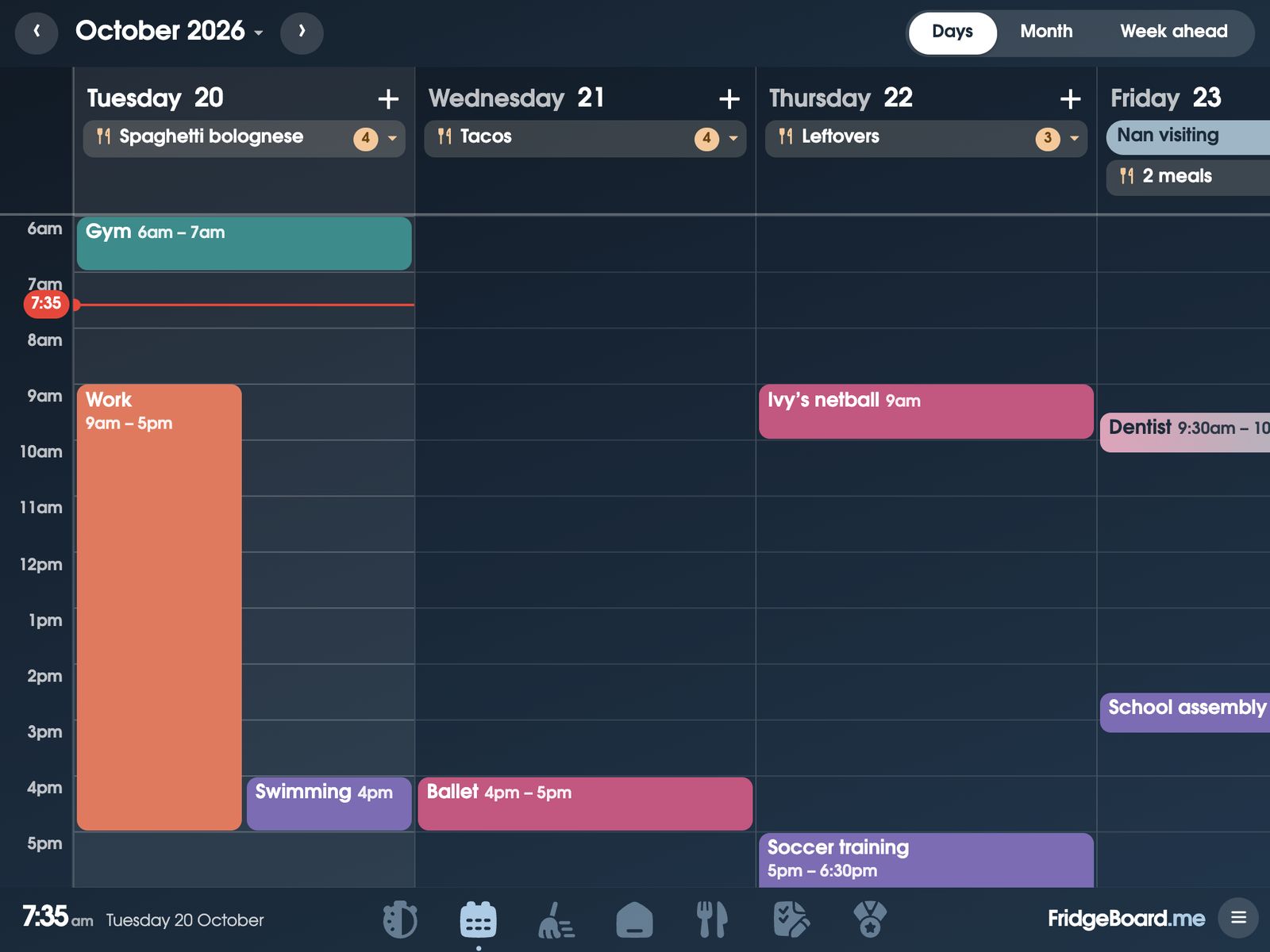
FridgeBoard turns an iPad or tablet into a touchscreen family calendar for the fridge or the kitchen wall. It brings your Google, Outlook and iCloud calendars together in one place, shows each person’s events in their own colour, and keeps every phone at home in sync, with tonight’s dinner and bin night on it too.
Why a paper wall calendar gets out of date
A paper family planner on the wall works when one person writes everything on it. The trouble starts when the netball draw changes, a work trip moves, or the dentist calls to reschedule while you’re at work. The wall calendar never hears about it. Meanwhile each adult keeps their own calendar on their phone, and nobody sees the whole week at once.
A digital wall calendar in the kitchen fixes that. It shows the calendars you already use, it changes when they change, and it’s where everyone walks past ten times a day. The kids can see what’s on without asking, and you can add something from your phone at the shops and it’s on the fridge before you’re home.
Google Calendar, Outlook and iCloud in one shared family calendar
- Google Calendar and Outlook sync both ways. Add, move or change an event on the shared screen or a phone, and it changes in Google or Outlook too.
- iCloud and any calendar link. iCloud calendars, the school calendar, the sports club’s draw and any other .ics link can be shown alongside (read-only).
- Up to 20 calendars per household, included in the price. No extra charge for a second account or the school’s calendar.
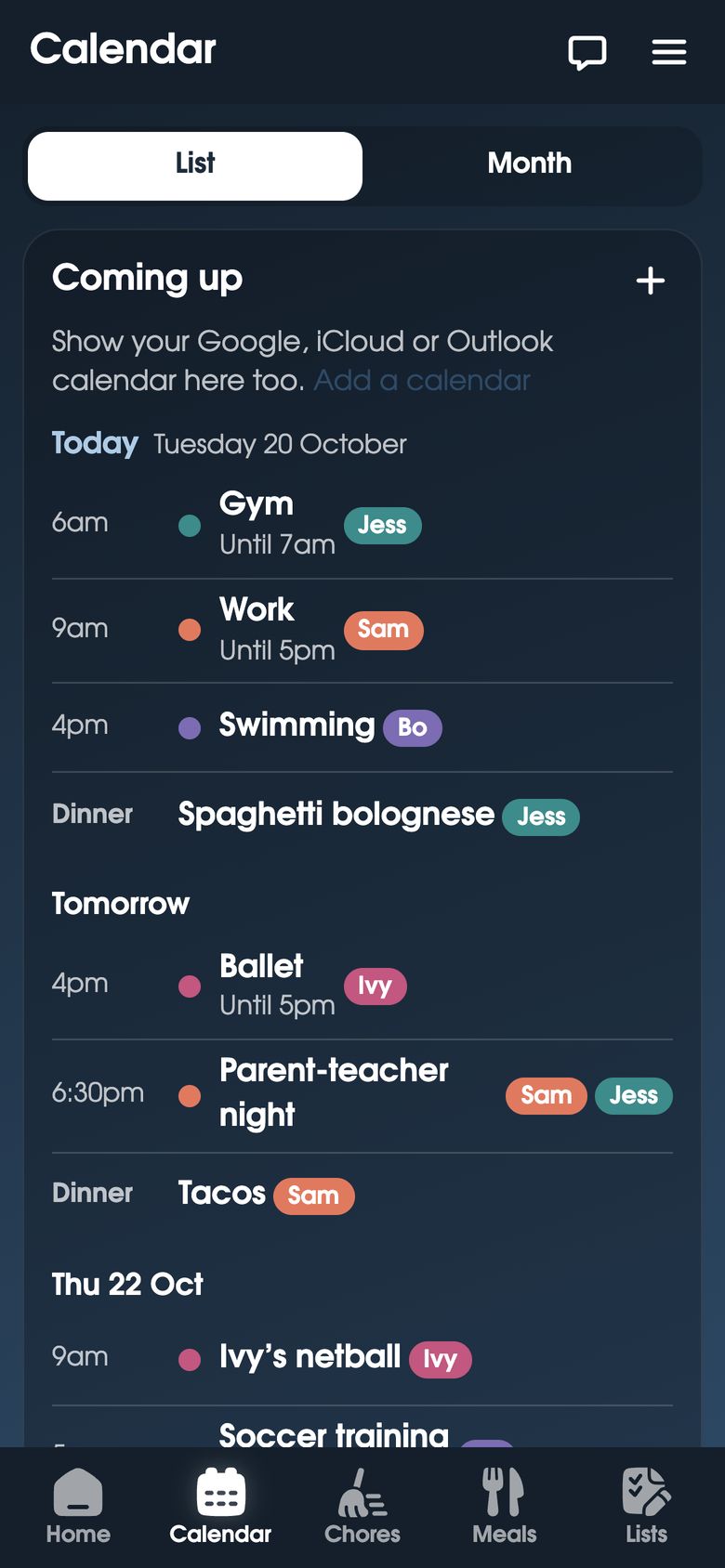
- Everyone’s phone sees the same calendar. Every adult in the household uses it from their own phone, and teenagers with a phone can see it too.
A colour-coded family calendar, without the fiddling
Every person has a colour, and their events show in it: Ivy’s ballet in pink, Bo’s swimming in purple, Sam’s work in orange. You don’t need a separate calendar for each child. Put @Ivy in an event and it becomes Ivy’s, in her colour. An event for two or more people shows in both their colours, and places show under the time, so you know which pool the swimming is at.
Days, Week and Month views
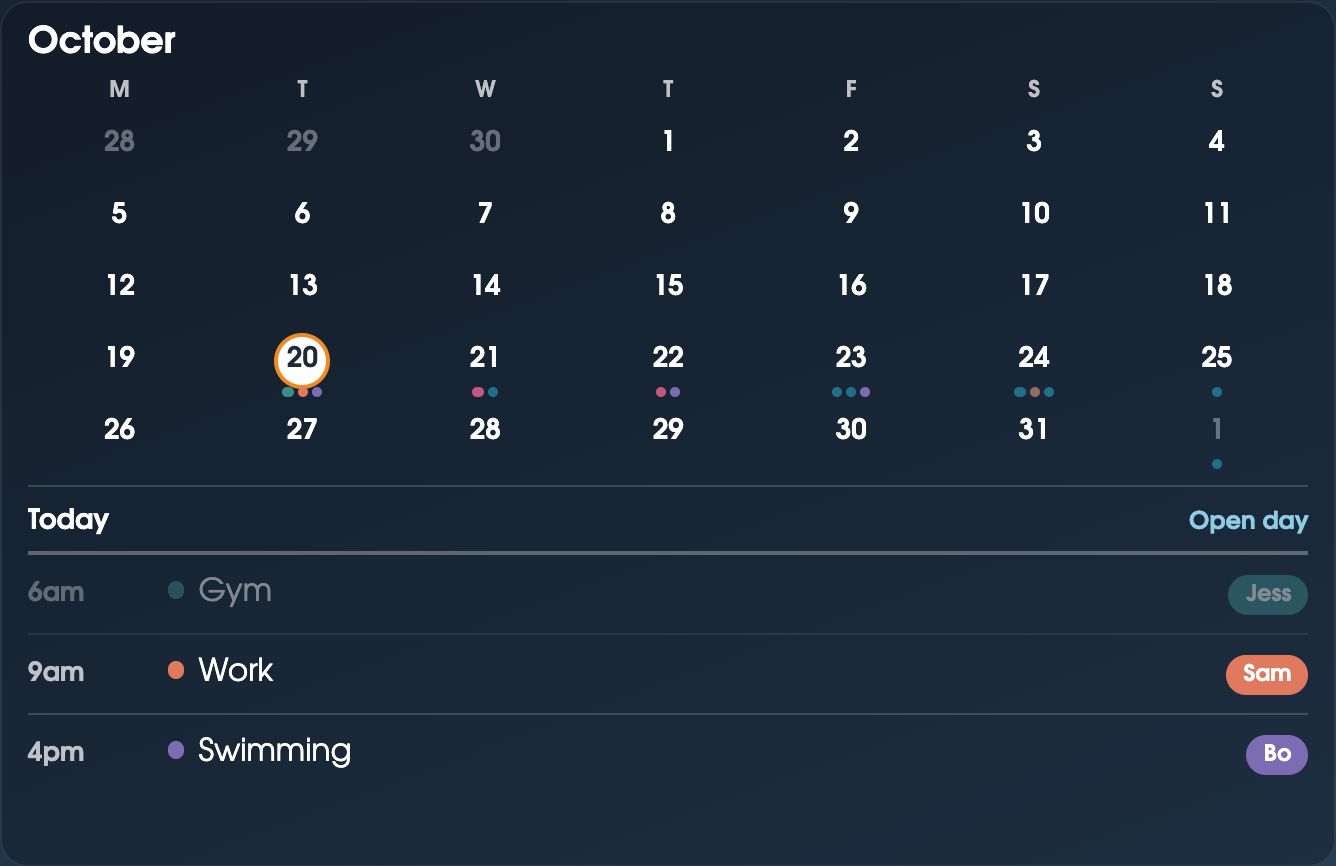
On the shared screen, the Calendar tab has three ways to look at things. Days shows a column for each day with the hours down the side, so you can see where the gaps are. Week puts seven days side by side for the week ahead. Month shows the whole month, with events up to a year ahead.
On Home, you choose which calendar cards to show: a Month card, an Upcoming list of what’s next, or each person’s own card with just their events for today. Your week can start on Sunday or Monday, and times can be 12 or 24-hour.
Dinner and bin night on the calendar
The family calendar isn’t only appointments. Today’s dinner from the meal planner shows in each day, with who’s cooking. Bin night (trash night, if that’s what you call it) can show too, with the right coloured bins, so “Bins out tonight” is on the fridge the evening before. If you already write meals in your calendar, an event called “Dinner: Tacos” can become that day’s dinner.
How to run a family calendar people actually use
- One rule: if it’s not on the calendar, it’s not happening. It sounds harsh, but it stops the “you never told me” at 4pm on a Thursday.
- Add the school and club calendars once. Most schools and sports clubs publish a calendar link. Add it and the term dates, sports days and the draw appear by themselves.
- Give every person a colour, and keep it. Children learn their colour fast and look for it.
- Put the address in. The place shows under the time, which saves a phone call on the way out the door.
- Look at the week together on Sunday night. Five minutes in front of the fridge sorts out who’s driving where.
- Put it where you walk past. A calendar in the kitchen gets looked at. One in a phone app mostly doesn’t.
Setting it up
- On your phone, go to fridgeboard.me and tap Try it free. Add who lives at home and give each person a colour.
- Go to Settings › Calendars. Google and Outlook connect with a sign-in. For iCloud, the school or a club, paste the calendar’s share link.
- On the iPad, open Safari, go to fridgeboard.me, tap Open, then Use this as the shared screen. Scan the code with your phone.
- Put the iPad on the fridge, the kitchen wall or the bench. Choose which calendar cards go on Home.
It works on any iPad from the iPad 2 on, even ones that stopped getting updates, and on Android tablets and other screens with a web browser. Turning an old iPad into a family screen.
Questions
How do I put a family calendar on an iPad on the fridge?
Sign up for FridgeBoard on your phone, connect your Google, Outlook or iCloud calendars, then open fridgeboard.me in Safari on the iPad and scan the code it shows. The iPad becomes a family calendar that stays in sync with every phone at home.
Can I show Google Calendar, Outlook and iCloud together?
Yes. Google Calendar and Outlook sync both ways, and iCloud, school and club calendars can be shown read-only from their share links. Up to 20 calendars per household are included.
Can each family member have their own colour?
Yes. Every person has a colour and their events show in it. Put @Name in an event to make it that person’s, without a separate calendar for each child.
Does it work as a touchscreen calendar in the kitchen?
Yes. On the shared screen you can tap through Days, Week and Month views, and add or change events, which go back to Google or Outlook.
Does it show meals and bin night?
Yes. Today’s dinner from the meal planner shows in each day, and bin night can show on the calendar with each bin’s colour.
Is there a monthly fee for the family calendar?
No. FridgeBoard is one payment for the whole household (US$24 plus tax in the US, A$39 in Australia), with up to 20 calendars and every feature included.