What to do with an old iPad: make it the family calendar
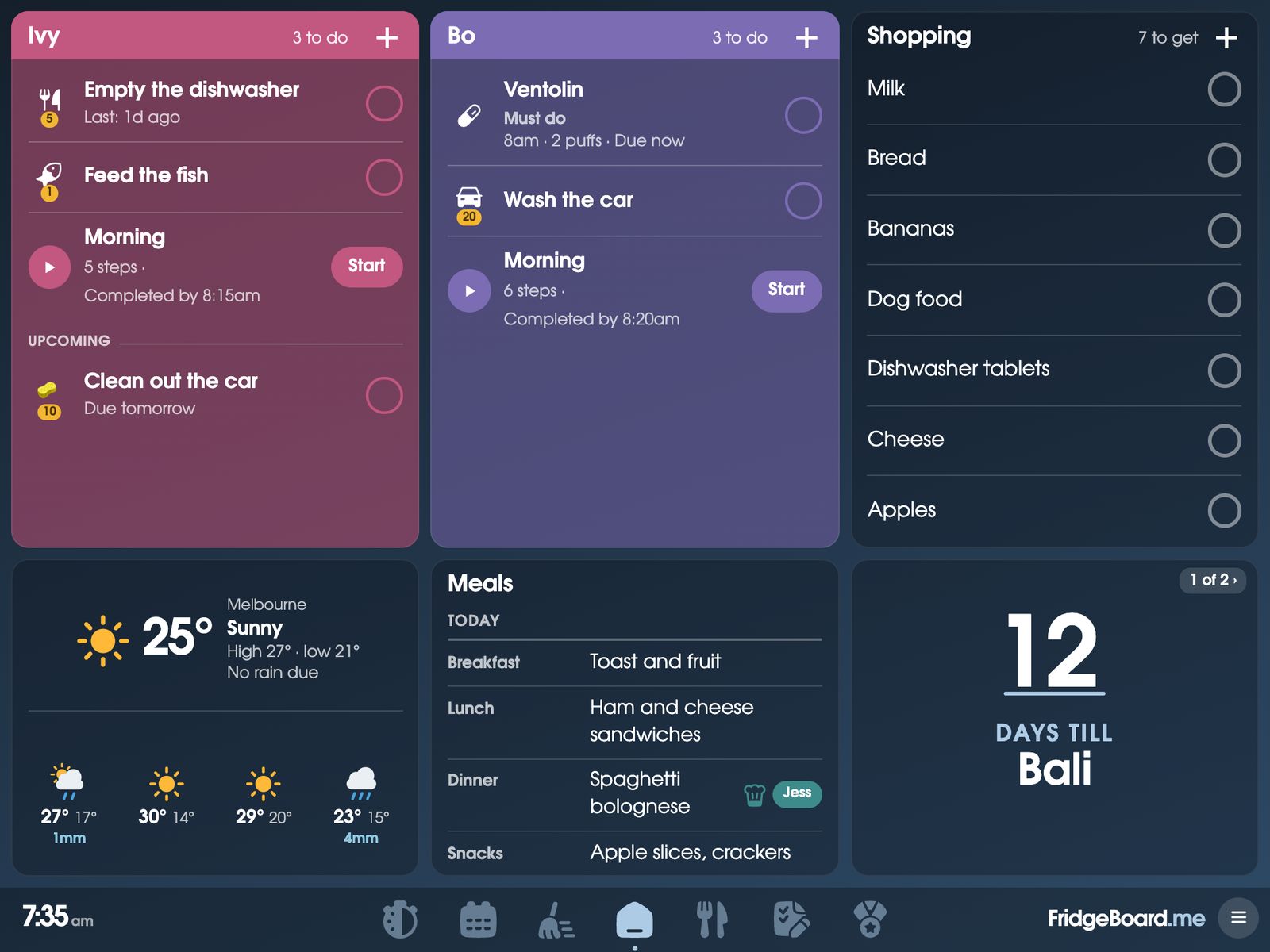
An old iPad that no longer gets updates can become your family calendar on the fridge. FridgeBoard runs in Safari on any iPad from the iPad 2 (2011) on, back to iOS 9, and turns it into the household’s shared screen: calendar, chores, shopping list, meals and routines, kept in sync with every phone at home. This guide covers getting an old iPad charged, online, set up and on the fridge.
Will my old iPad work?
Almost certainly. FridgeBoard works on the iPad 2 and every iPad since, including every iPad Air, iPad mini and iPad Pro, even ones that stopped getting updates years ago. It runs in the web browser, so it doesn’t need the App Store, an Apple ID or the latest iOS. Old iPads get a lighter version that’s made to run fast.
The only one too old is the very first iPad from 2010. An easy way to tell: the first iPad has no camera at all. If yours has a camera on the back, it will work.
Families run FridgeBoard on the iPad 2, the original iPad mini, iPads ten years old and more, and the 13-inch iPad Pro, which makes a big, easy-to-read family screen.
Repurposing an old iPad: why the fridge is a good home for it
Most old iPads end up in a drawer because they’re too slow for new apps, the battery doesn’t last off the charger, or they can’t update. None of that matters on the fridge. It stays plugged in, it does one job, and that job runs in the browser it already has. It saves buying a new family calendar screen, and it keeps a working device out of landfill.
Getting an old iPad ready, step by step
- Charge it overnight. An iPad that won’t turn on is almost always just flat. Find a charger that says 10W or more on it (10W, 12W, 20W, or 2.1A and up). A small phone charger or an older laptop’s USB port is often too weak to wake a flat iPad. Leave it on charge overnight. A flat iPad can show nothing at all, or just an empty battery, for up to an hour. That’s normal.
- Check the battery isn’t swollen. If the screen is lifting at the edges or the back is bulging, the battery has swollen. Don’t charge it and don’t use it: take it to a battery recycler. The same goes later on: if the case ever starts to lift, unplug it and stop using it.
- Join the Wi-Fi. Go to Settings › Wi-Fi and join your network. If an old iPad won’t connect, see the Wi-Fi tips below. All is not lost: it can nearly always be fixed without buying anything.
- Open FridgeBoard. In Safari, go to fridgeboard.me, tap Open, then Use this as the shared screen. It shows you how to add it to the Home Screen. Then open it from the Home Screen icon, so the address bar is gone.
- Connect it to your household. The iPad shows a QR code. On your phone (where you’ve tapped Try it free and added who lives at home), tap Connect a screen and scan it, or type the code under it. Your board appears.
- Keep the screen on. Settings › Display & Brightness › Auto-Lock › Never. On older iPads, Auto-Lock is under Settings › General. FridgeBoard’s own sleep screen takes over at night.
- Stay in FridgeBoard with Guided Access. Settings › Accessibility › Guided Access: turn it on and set a passcode. Then, in FridgeBoard, triple-click the Home button (or the top button on iPads without one) and tap Start. To leave, triple-click again and type the passcode. On older iPads, it’s under Settings › General › Accessibility. This stops little fingers wandering off to YouTube.
- Keep it plugged in. Leave it on a 10W or stronger charger all the time. A small phone charger can’t keep up with a screen that’s on all day.
- Set the brightness. Open Control Centre (swipe down from the top right corner, or up from the bottom on older iPads) and drag brightness to about halfway.
When an old iPad won’t join the Wi-Fi
This happens a lot with older iPads and newer routers. Newer Wi-Fi (Wi-Fi 6, Wi-Fi 7 and mesh systems) still works with older devices, but some routers come with the older way of joining switched off. Try these in order:
- Join it again. Settings › Wi-Fi, tap your network, tap Forget This Network, then join again and type the password carefully. Restarting the router and the iPad can help too.
- Turn on the older security setting. In your router’s app or settings page, find the Wi-Fi security setting. If it says WPA3 only, change it to WPA2/WPA3 or WPA2. Some routers call this compatibility mode or legacy devices. Your other devices keep working.
- Make a guest network for the iPad. Most routers can make a second network. Set it to WPA2 and join the iPad to that one.
Still stuck? Email us your router’s brand and model and we’ll help you find the right setting.
When an old iPad is stuck on activation
Some old iPads, often cellular ones, stop at Apple’s Activate iPad screen, or say the iPad could not be activated, after being reset. That’s Apple’s activation, before FridgeBoard is involved, and it can usually be sorted:
- Take out the SIM card, if it has one, and try again. An old SIM can stop activation.
- Activate it through a computer. Plug it into a Mac (Finder) or a Windows PC (iTunes) and follow the steps there.
- Try again later. Apple’s activation servers are sometimes busy.
- Activation Lock. If it asks for an Apple ID and password, only the person who owned it can take that off. Apple can help if you have proof of purchase.
If it still won’t activate, a cheap second-hand or refurbished iPad does the job just as well. Any iPad from the iPad 2 on works.
Mounting an old iPad on the fridge
It doesn’t have to go on the fridge. Stand it on the kitchen bench in its case and it works just the same. If you do want it up:
- Adhesive magnets. Stick strong adhesive magnets to the back of the iPad’s case, press firmly for a while so the glue takes, then put it on the fridge. Use enough strong ones that it can’t slide, for example one near each corner. Check the fridge door is magnetic first: some stainless steel doors aren’t.
- A stand. A cheap tablet stand or a recipe book stand on the bench, leaning on the splashback. Easy to move to the table for homework.
- A wall mount. For a bigger or heavier screen, a purpose-made wall mount may suit better, near a power point.
Plan the charging cable before you stick anything: it needs to reach the iPad without pulling on it. Whatever you use to put it up, you do it at your own risk: we can’t take responsibility for devices that fall or break.
Turn an old iPad into a family calendar: what you get
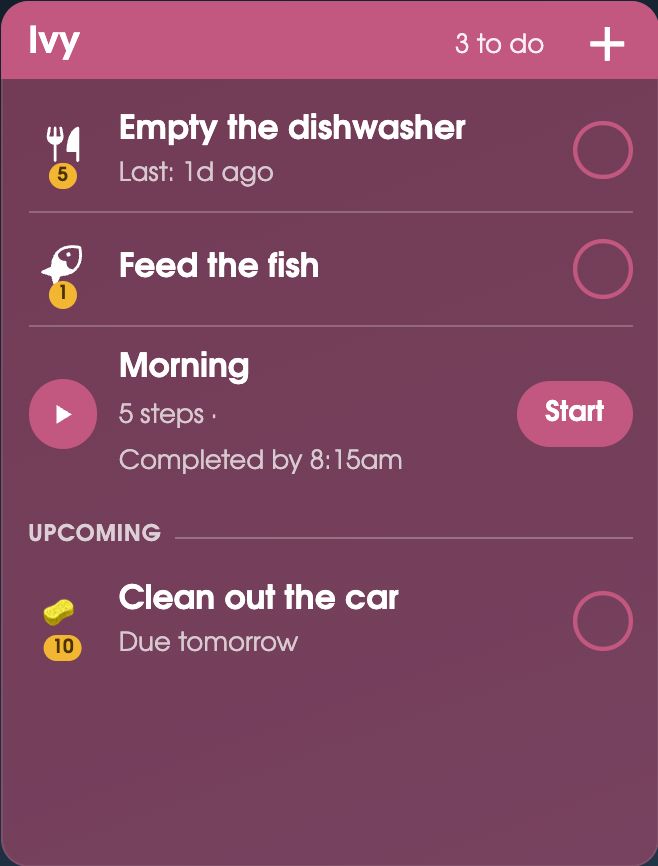
Once it’s on the fridge, the old iPad shows the family calendar (Google Calendar and Outlook sync both ways, and iCloud calendars can be shown), each child’s chores and coins, the shopping list, the week’s meals and step-by-step routines. At night it becomes a photo frame or a clock you can read across the room, and goes dark at the times you pick. Everything is also on every phone at home. More on what goes on it: the family command center.
Moving to a newer iPad later? Disconnect the old one from your phone and set up the new one the same way. Everything on your board stays.
Questions
My old iPad is stuck on the Activate iPad screen. What can I do?
That’s Apple’s activation, not FridgeBoard. Try taking out the SIM card, activating it through a Mac or PC, or trying again later. If it asks for the previous owner’s Apple ID, only they (or Apple, with proof of purchase) can remove it.
What can I do with an old iPad that no longer updates?
You can turn it into a family calendar and chore chart for the fridge with FridgeBoard, which runs in Safari on any iPad from the iPad 2 on. It doesn’t need the App Store or a newer iOS, back to iOS 9.
Which old iPads work with FridgeBoard?
The iPad 2 (2011) and every iPad since, including every iPad Air, iPad mini and iPad Pro. Only the very first iPad from 2010, the one with no camera, is too old.
My old iPad won’t turn on. Is it dead?
It’s almost always just flat. Charge it overnight with a charger of 10W (2.1A) or more, and don’t worry if it shows nothing for up to an hour; if the screen is lifting or the back is bulging, the battery has swollen, so don’t charge it.
How do I keep an iPad screen on all the time?
Set Settings › Display & Brightness › Auto-Lock to Never (under Settings › General on older iPads) and keep it plugged into a 10W or stronger charger. FridgeBoard’s sleep screen and night mode take over at night.
How do I put an iPad on the fridge?
A common way is to stick strong adhesive magnets to the back of the iPad’s case and press firmly so the glue takes. A stand on the bench works just as well and needs nothing stuck on, and anything you mount is at your own risk.
Do I need an Apple ID or an app to use an old iPad as a family calendar?
No. FridgeBoard runs in Safari, so there’s no app to install and no Apple ID needed. It’s one payment for the household, US$24 plus tax in the US or A$39 in Australia, with a 5-day free trial.