Home › Features › Family messages
A family message board: “Dinner’s ready” from your phone to the kitchen
FridgeBoard turns an iPad on the fridge into a family message board. Type “Dinner’s ready” on your phone and it shows full screen on the shared screen, or on every screen in the house, and an urgent message keeps ringing until someone taps Got it. Your phone then shows it’s been seen. It’s the easiest way to reach children who don’t have a phone yet.
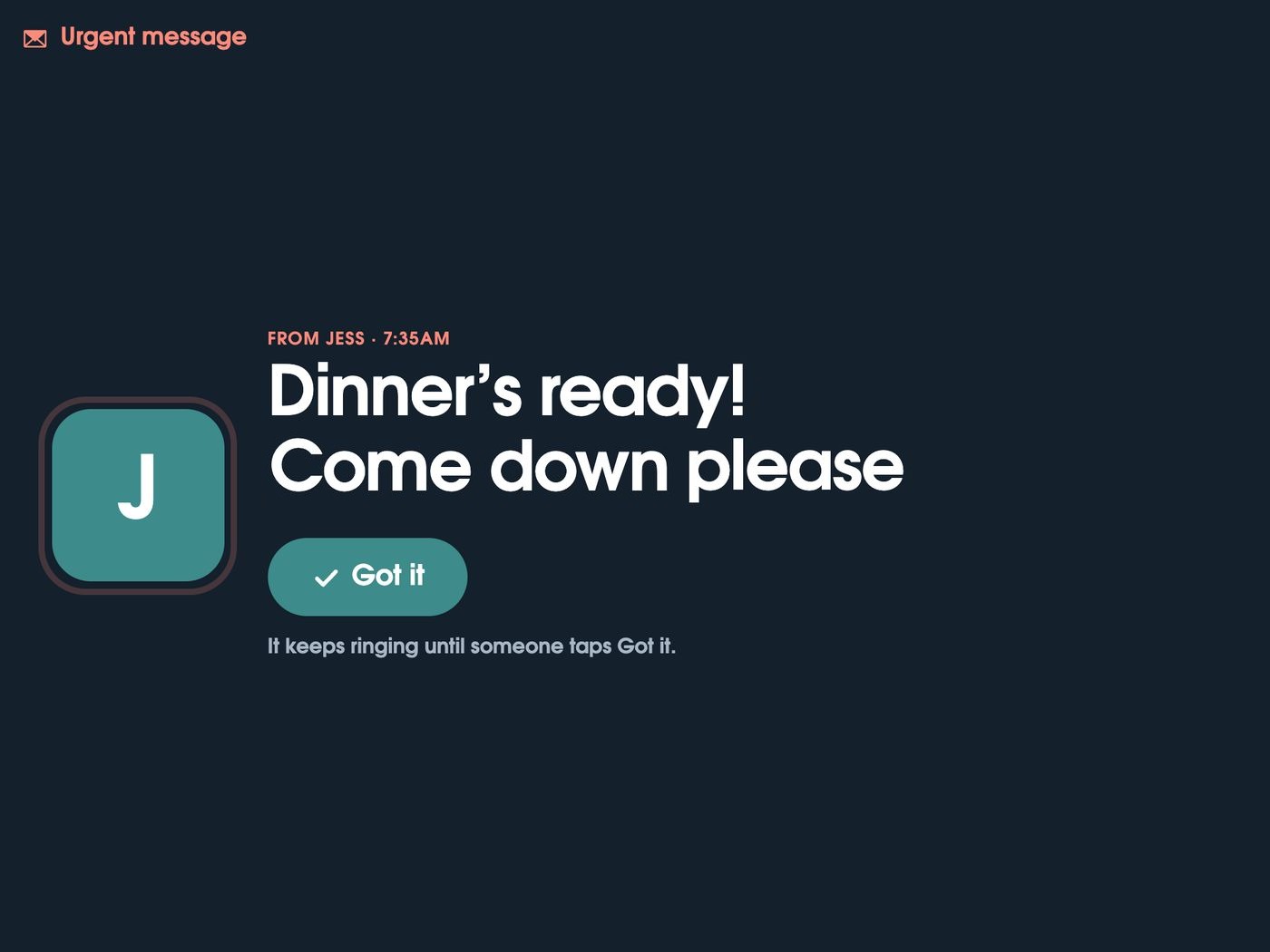
From your phone to the kitchen screen
Open FridgeBoard on your phone, start a message, and type it or tap a quick one. It goes to the screen you choose, or every screen at home, straight away. The message fills the screen with who it’s from in their colour, in big letters you can read from the couch.
- Urgent messages ring. Mark it urgent and the screen keeps ringing until someone walks over and taps Got it. No “I didn’t hear you”.
- You see that it was seen. Once Got it is tapped, your phone shows it, so you know the message landed and aren’t left wondering.
- It gets through at night. A screen on its sleep screen or dimmed for the night still gets the message.
- Quick messages. Tap “Dinner’s ready”, “I’m on my way home” or “Homework before screens” to fill it in, then Send.
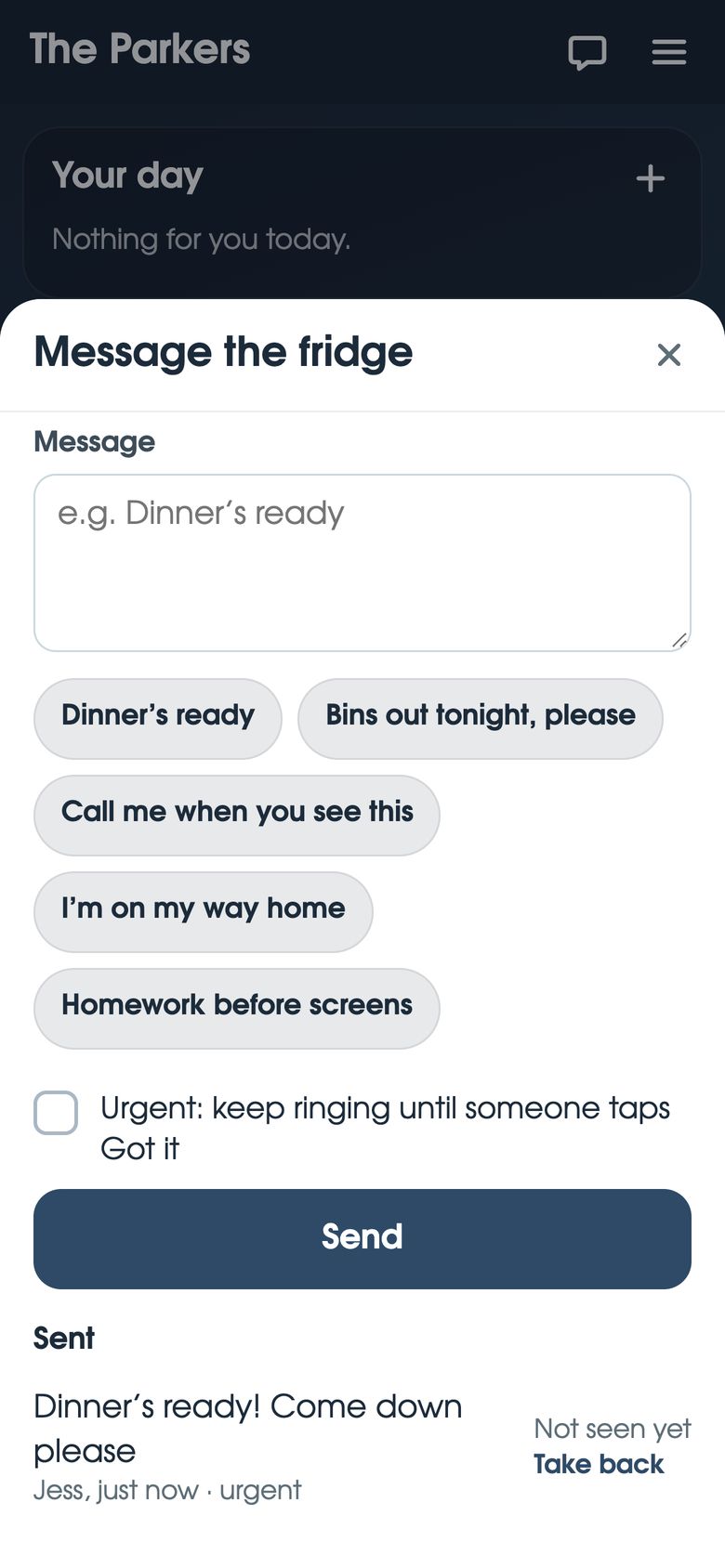
Reaching kids who don’t have a phone yet
You’re upstairs with the baby, at the shops, or out in the garden, and the kids are in the lounge with the TV on. Shouting doesn’t work and they don’t have a phone. A message on the kitchen screen that rings until they answer does. From work you can send “Hang the washing out please” and see when they’ve read it.
It’s also handy for older kids who do have phones but don’t look at them when you want them to.
Messages between screens around the house
If you have more than one shared screen (the kitchen, the top of the stairs, a child’s room), a Send to screens card puts message buttons on Home. Tap “Dinner’s ready” on the kitchen screen and it pops up on the others, from the kitchen. Each button has its own icon and colour, and any of them can be urgent. Anyone can tap a button, and adding or changing them can be kept behind the household PIN, so the buttons stay as you set them. Three shared screens are included, and phones don’t count. Which screens work.
Little notes: thank-yous and well dones
Not every message is about dinner. Little notes is a card where anyone can put up a short note: “Thank you for walking Max in the rain”, “Well done on your spelling test”, “I love our Saturday pancakes”. The notes take turns on the card through the day.
- A note can be for someone in particular, and can start on a later day.
- You choose how long each note stays up: a day, a week, a month, or until you take it down.
- Pin one note to keep it up on its own, for a birthday or a big day.
- Pick a kind (Thankful for, Well done, I love, or just a note) or make your own.
- Choose how it looks: neat cards, or just sticky notes on the screen.
A digital notice board, not just messages
The same screen does the jobs the old corkboard did. The family calendar shows what’s on. A Handy numbers card keeps the vet, the babysitter and the takeaway in one place. A Links card opens the school newsletter PDF full screen. Lists hold the shopping, the packing and the birthday ideas. And if your home runs Home Assistant, automations can put messages on the screens too, like “Front door’s been left open”. FridgeBoard and Home Assistant.
Ideas for using a family message board
Some messages that work well on a shared screen, whatever you use:
- Calls to the table. “Dinner in 5 minutes. Hands washed.”
- Leaving the house. “Shoes and bags at the door, we leave at 8:15.”
- Small asks. “Can someone bring the washing in?” beats yelling up the stairs.
- Running late. “Stuck in traffic, home at 6. Start the rice please.”
- Good news. “Nana’s coming for dinner on Sunday.”
- Thank-yous. Notice something kind and write it down where everyone will see it.
One tip: keep urgent for things that need someone now. If every message rings, they’ll stop jumping up for it.
Setting it up
- On your phone, go to fridgeboard.me and tap Try it free. Add who lives at home.
- On the iPad, open Safari, go to fridgeboard.me, tap Open, then Use this as the shared screen. Scan the code with your phone.
- Send a test message from your phone. Invite the other adults so they can send them too.
- Add a Little notes card, and a Send to screens card if you have more than one screen.
It works on any iPad from the iPad 2 on, including old ones that no longer get updates, and on Android tablets and computers. Turning an old iPad into a family screen.
Questions
How can I send a message from my phone to a tablet in the kitchen?
With FridgeBoard, you type a message on your phone and it shows full screen on the shared screen in the kitchen, or on every screen at home, straight away.
Is there a way to contact kids who don’t have a phone?
Yes. Send an urgent message from your phone to the FridgeBoard screen at home, and it keeps ringing until someone taps Got it, then your phone shows it was seen.
Do messages get through when the screen is asleep?
Yes. A FridgeBoard screen on its sleep screen or dimmed for the night still gets messages, so “Dinner’s ready” shows up whatever time it is.
Can screens in different rooms send messages to each other?
Yes. A Send to screens card puts message buttons on a screen, and tapping one sends it to the other screens in the house, and changing the buttons can be kept behind the household PIN.
Can the family leave notes for each other on the screen?
Yes. Little notes is a card for short thank-yous and well dones that take turns on the screen, and each note can stay up for a day, a week, a month or until it’s taken down.
Is it a subscription?
No. FridgeBoard is one payment for the whole household (US$24 plus tax in the US, A$39 in Australia), with every feature included and a 5-day free trial with no card needed.